/filters:background_color(white)/2024-10/Sona%20IF573%20-%20Family.png)
/filters:background_color(white)/2025-07/STM32_to_2230_Adapter%2C_M_2_2230%20Render-front.569.png)
Integrating IF573 on NUCLEO-H745ZI-Q via Ezurio STM32 Nucleo Adapter Card
Introduction
The STM32 Nucleo Adapter Card is designed for effortless integration with the Nucleo-144 form factor board. Featuring 144 pin headers, it connects seamlessly to the STM32 Nucleo board without the need for any hardware modifications. Furthermore, it includes a MikroBUS interface that facilitates peripheral expansion.
This guide outlines the process for configuring the setup on STM32CubeIDE and executing Wi-Fi functionality on the NUCLEO-H745ZI-Q using FreeRTOS. The tutorial specifically focuses on the example related to IF573.
Hardware Setup
In the images provided, you can observe the NUCLEO-H745ZI-Q with a Nucleo-144 adapter on the left, alongside the STM32 Nucleo Adapter Card with the IF573 positioned on top of it on the right.
453-00119 (IF573, M2, SDIO) is plugged into M.2 slot.
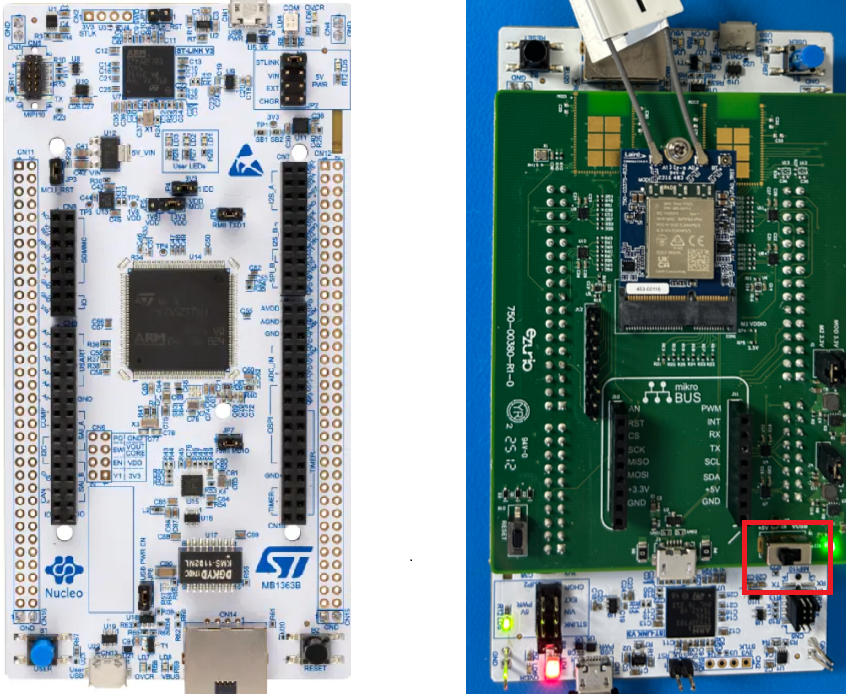
Note: Ensure that the power source is configured to +5V, as indicated in red above.
Prerequisites
The following software needs to be installed:
- STM32CubeMX: For generating code by integrating firmware and packages.
- STM32CubeIDE: IDE for compiling, flashing, and debugging via ST-Link.
- STM32CubeProgrammer: For flashing binary files onto STM32 boards.
Updating Software
STM32CubeMX: Installing Updates
Launch STM32CubeMX:
-
Navigate to Help > Check for Updates.
-
Refresh the list, select the new version, and click Install.
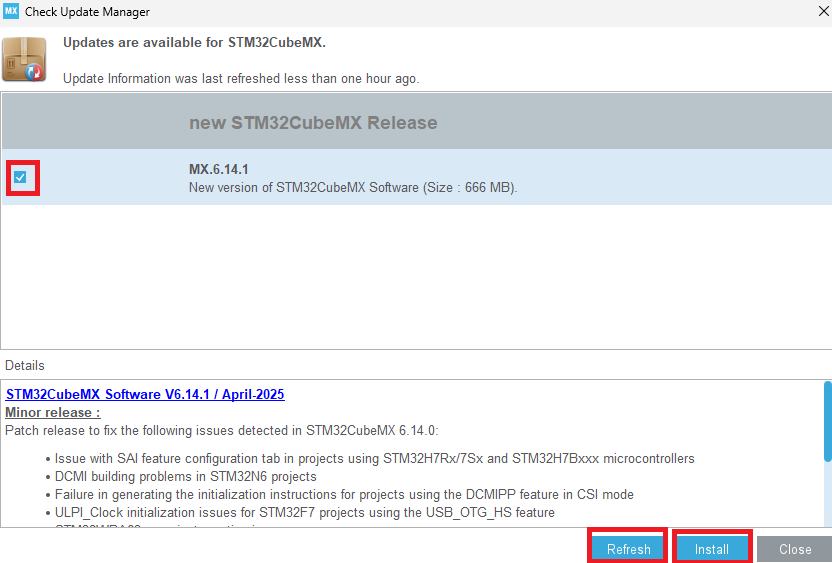
Install STM32 Connectivity Expansion Pack v1.7.1
-
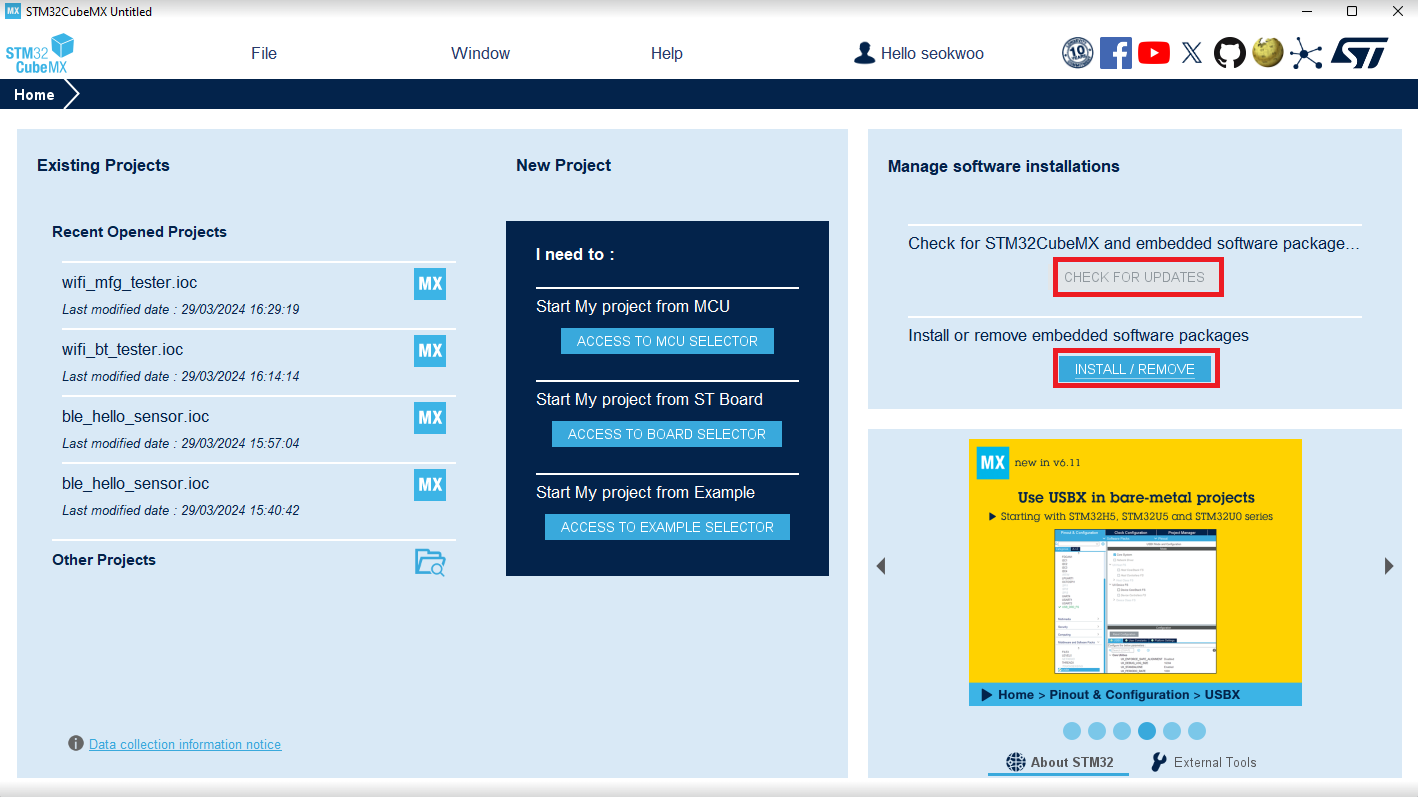
Open STM32CubeMX and select Install/Remove under Manage Software Installation.
-
Click the Infineon tab, refresh, select version 1.7.1, and click Install.
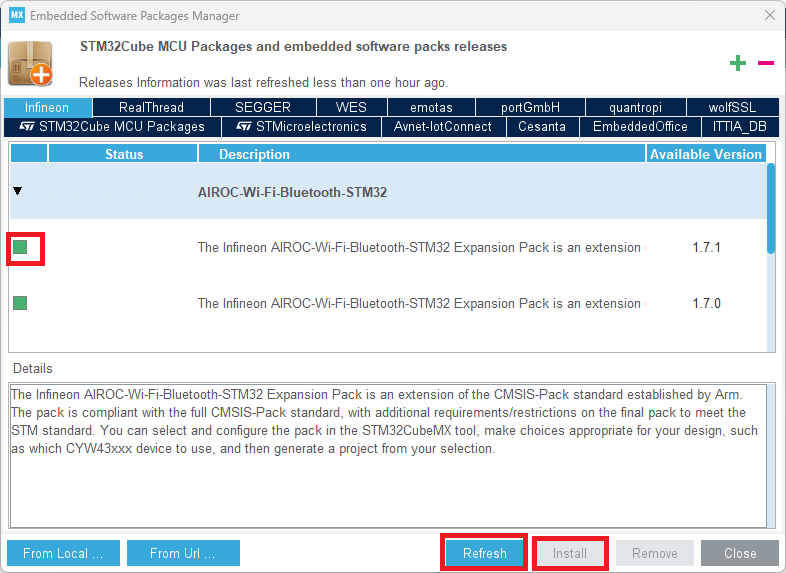
-
Close STM32CubeMX.
Configuring application with STM32CubeMX
Open project in STM32CubeMX
-
Copy wifi_bt_tester from the repository:
C:\Users\%USERNAME%\STM32Cube\Repository\Packs\Infineon\AIROC-Wi-Fi-Bluetooth-STM32\1.7.0\Projects\NUCLEO-H745ZI-Q\Applicationsto your personal directory:
C:\Users\%USERNAME%\STM32Cube\Examples -
Rename
<application>\STM32CubeIDEto<application>\STM32CubeIDE.org. -
Double-click
wifi_bt_tester.iocto open in STM32CubeMX.
Select Migrate if prompted.
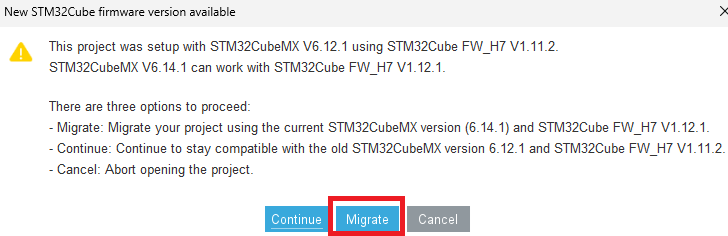
-
Under Pinout & Configuration, select Software Packs > Select Components.
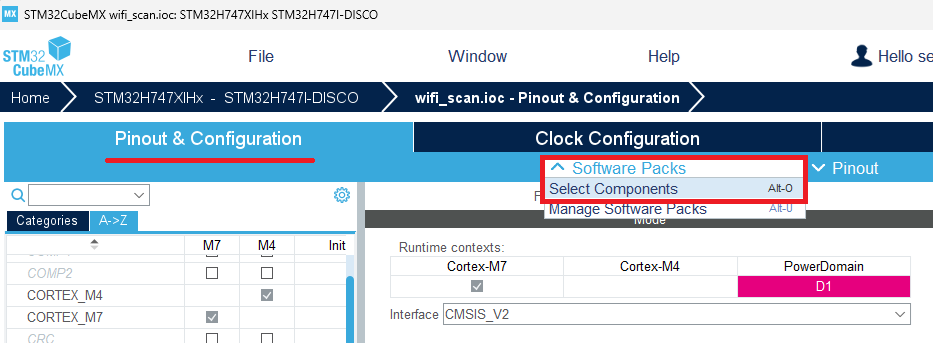
Configuration
-
Disable Bluetooth components (
btstack,btstack-integration). -
Choose CYW55572 as the device and SONA-IF573 as the module.
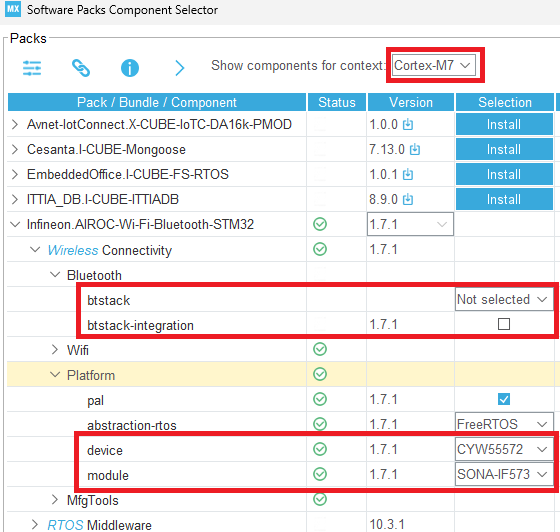
-
Come back to Pinout page. Under FREERTOS_M7 > Advanced settings, enable
USE_NEWLIB_REENTRANT.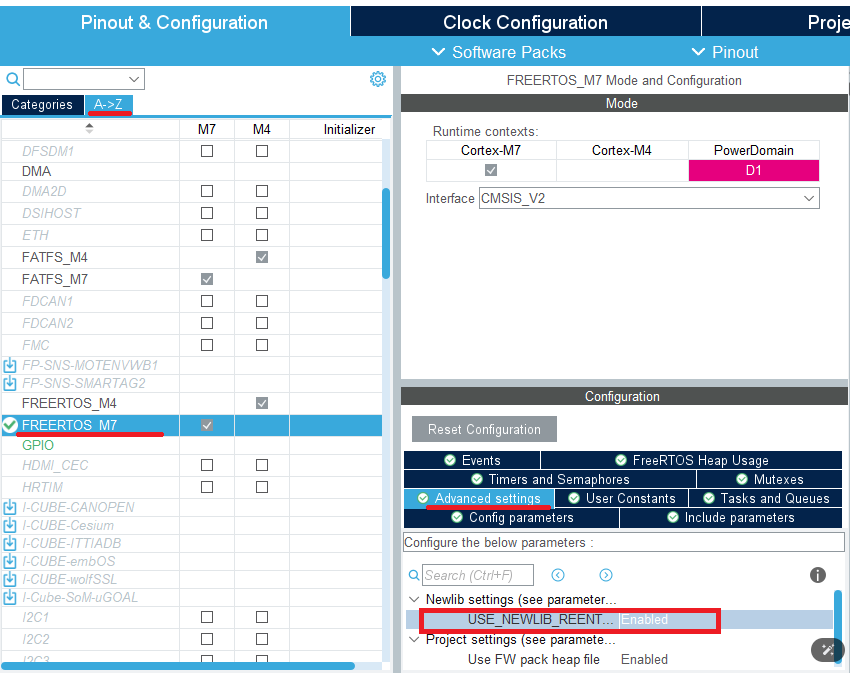
Generate Code
Click Generate Code and open the project.
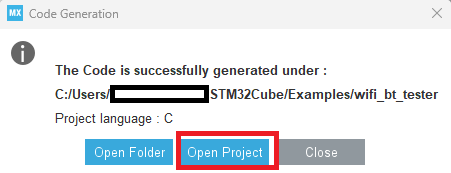
Restore Original Linker Script
Once project is open in STM32CubeIDE, copy linker script from:
...\STM32CubeIDE.org\CM7\STM32XXXX_FLASH.ldto:
...\STM32CubeIDE\CM7\STM32XXXX_FLASH.ldBuilding Application in STM32CubeIDE
Modify source codes
Delete bt_cfg.c and bt_utility from:
wifi_bt_tester_CM7 > Middlewares > Connectivity > Wireless > MfgTools > command-console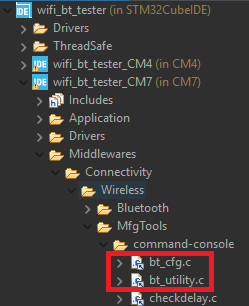
Modify console_task.c located at Application > User > Core:
Insert (Private macro section):
#define SDMMC1_D0 PC8 #define SDMMC1_D1 PC9 #define SDMMC1_D2 PC10 #define SDMMC1_D3 PC11Comment out:
//bt_utility_init();Add GPIO initialization code before the stm32_cypal_wifi_sdio_init() function:
cyhal_gpio_init(SDMMC1_D0, CYHAL_GPIO_DIR_OUTPUT,CYHAL_GPIO_DRIVE_PULLUP, false); cyhal_gpio_init(SDMMC1_D1, CYHAL_GPIO_DIR_OUTPUT,CYHAL_GPIO_DRIVE_PULLUP, false); cyhal_gpio_init(SDMMC1_D2, CYHAL_GPIO_DIR_OUTPUT,CYHAL_GPIO_DRIVE_PULLUP, false); cyhal_gpio_init(SDMMC1_D3, CYHAL_GPIO_DIR_OUTPUT,CYHAL_GPIO_DRIVE_PULLUP, false); cyhal_system_delay_ms(10); cyhal_gpio_write(SDMMC1_D0, true); cyhal_gpio_write(SDMMC1_D1, true); cyhal_gpio_write(SDMMC1_D2, true); cyhal_gpio_write(SDMMC1_D3, true); cyhal_system_delay_ms(10); cyhal_gpio_free(SDMMC1_D0); cyhal_gpio_free(SDMMC1_D1); cyhal_gpio_free(SDMMC1_D2); cyhal_gpio_free(SDMMC1_D3);Add Build Macro
-
Right-click
wifi_bt_tester_CM7, select Properties. -
In C/C++ Build > Settings > MCU Settings, enable Use float.
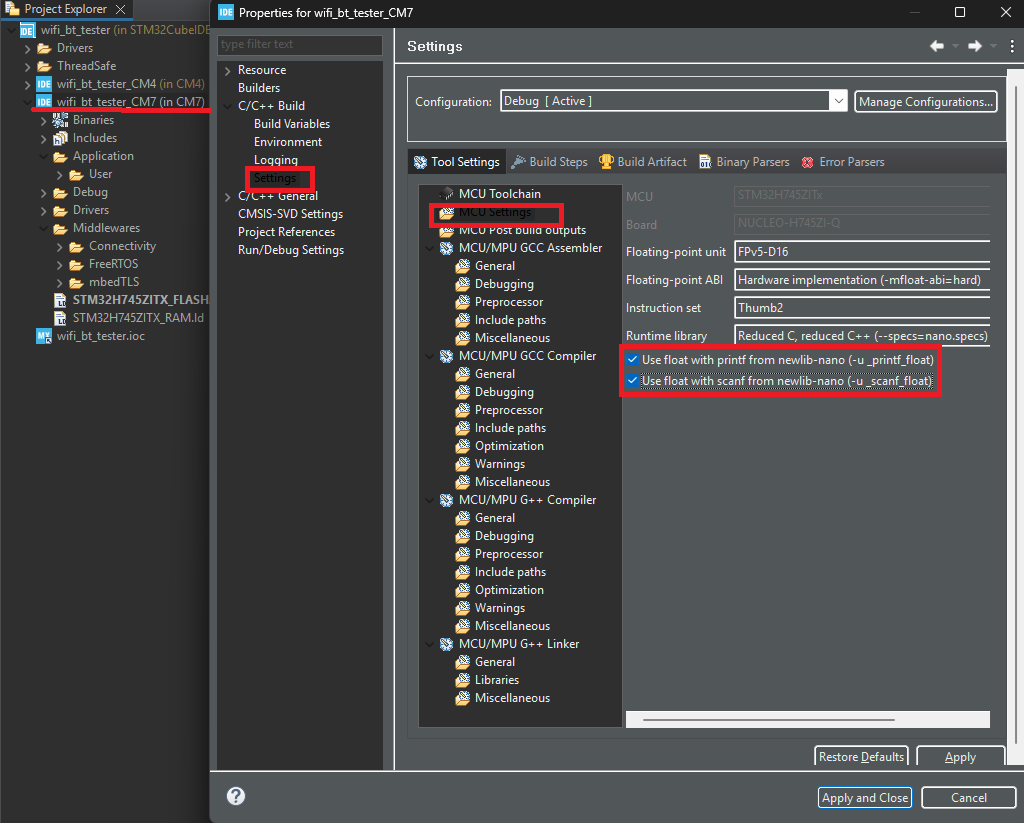
-
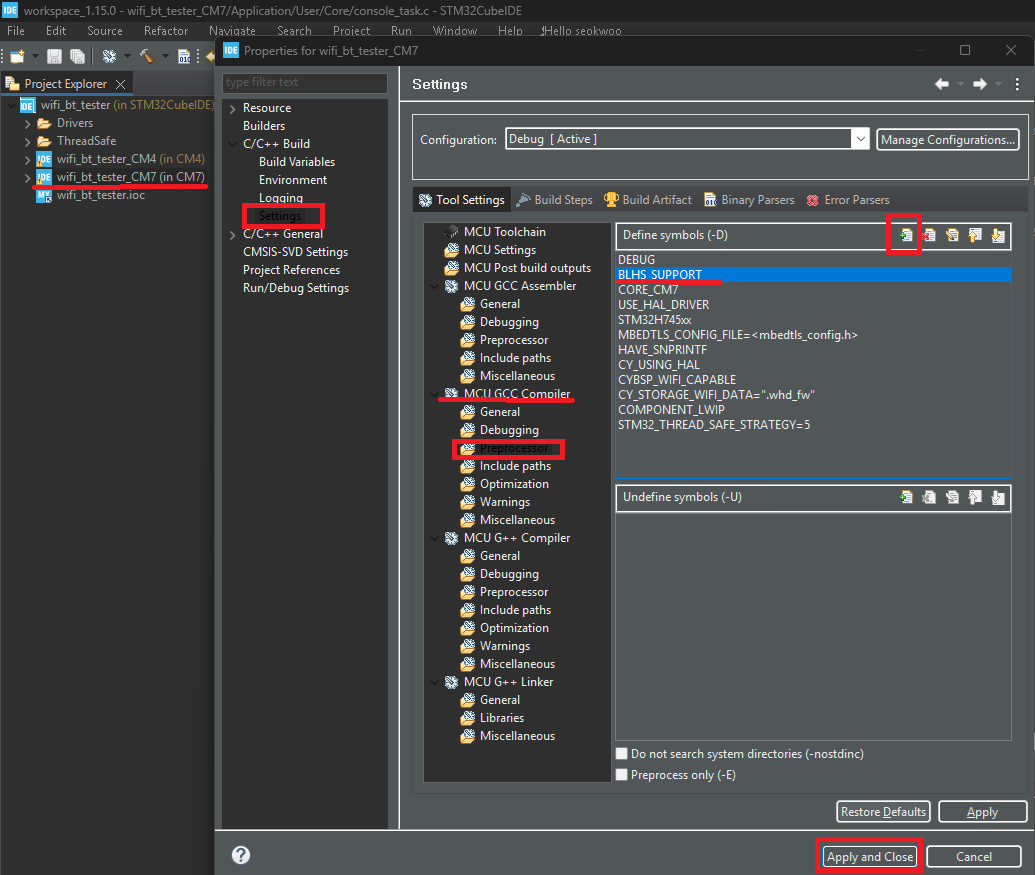
Under C/C++ Build > MCU GCC Compiler > Preprocessor, add macro
BLHS_SUPPORT. Then apply and close.
-
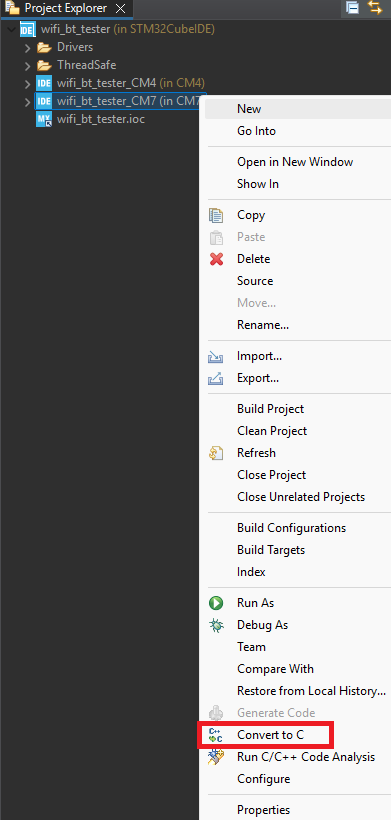
Right-click on
wifi_bt_tester_CM7and select Convert to C.
Build Application
Build application (Project > Build All).
Flash Application
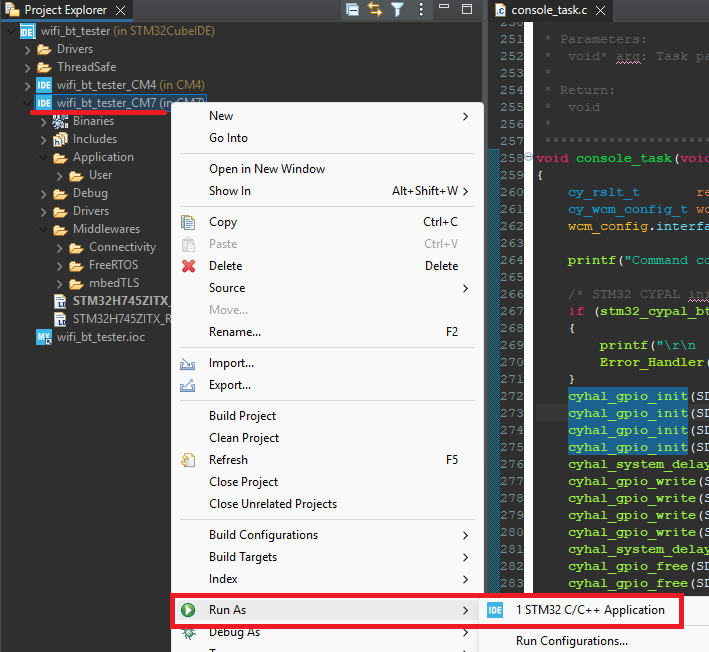
Right-click wifi_bt_tester_CM7, select Run As > STM32 C/C++ Application.
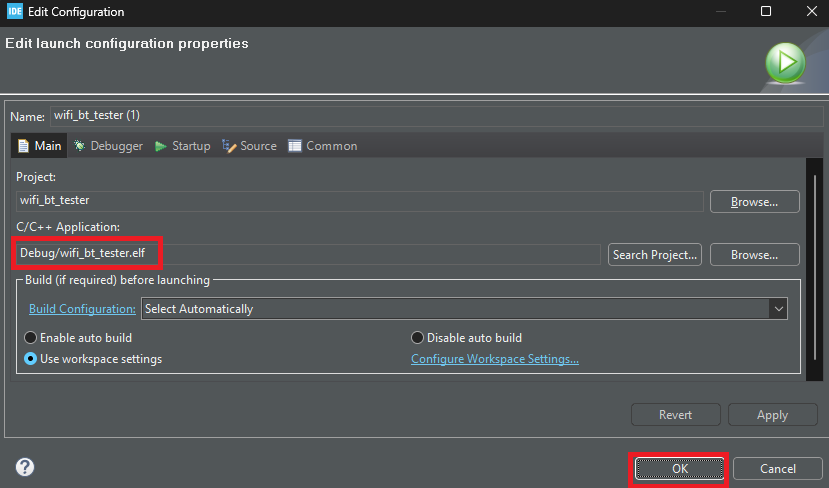
In Edit Configuration, confirm Debug/wifi_bt_tester.elf is selected, and click OK.
Running Application
-
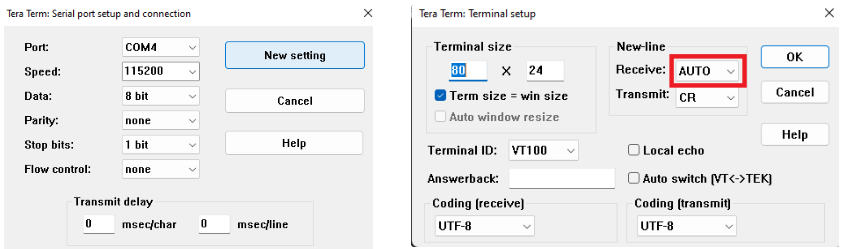
Configure serial port and new-line receive to AUTO.
-
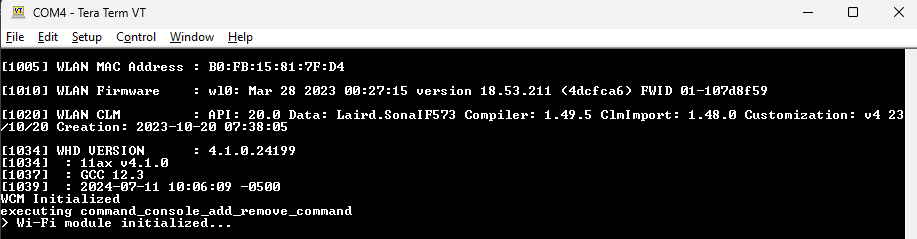
Power cycle the board; Wi-Fi module initializes.
-
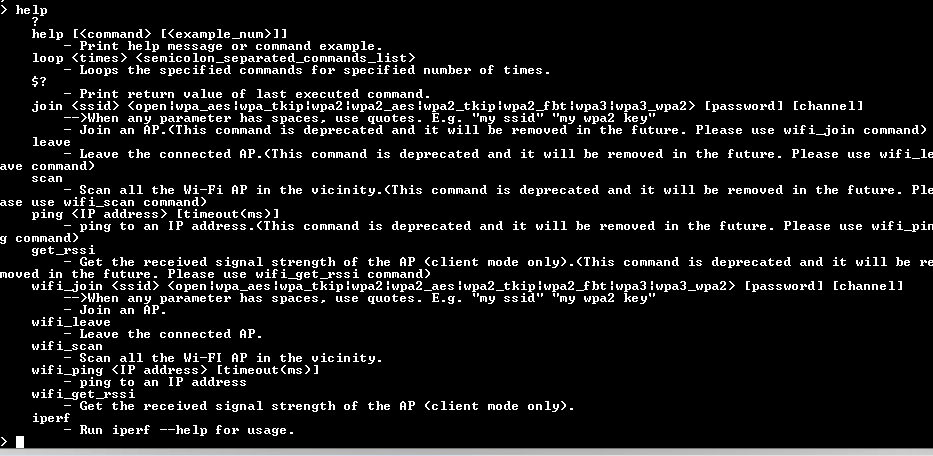
Type
helpto list all available commands.
-
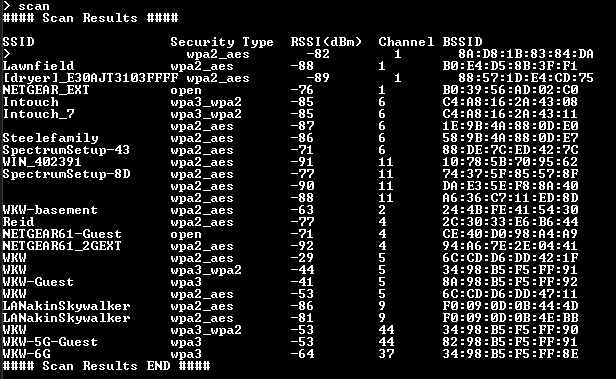
For example,
scancommand scans for Wi-Fi network.