/filters:background_color(white)/2024-03/canvas-software-suite-red.png)
/filters:background_color(white)/2024-11/Pinnacle-100---Ext-Ant---Front-crop_1.png)
/filters:background_color(white)/2024-11/MG100%20-%20Canvas1.png)
Introduction
The MG100 is supported by Canvas Platform Firmware as part of the Canvas Software Suite. This firmware provides developers a path to quickly design and build applications using the Python language and leverage Python-based APIs for access to the underlying hardware and radio feature set. This guide focuses on developing software for the MG100 and Pinnacle 100 DVK, though the principles described apply to any PCB on which the Pinnacle 100 modem is placed as long as the appropriate SWD and serial port access is provided by the PCB to use with Canvas Tools for programming.
Getting Started
MG100
The Sentrius™ MG100 is equipped with a USB port used to provide access to the Python REPL. This is the primary interface you will use when developing software for the MG100. The on/off switch must be switch to the position away from the USB port to turn the device on.

This USB port connects to an on-board FTDI USB to UART IC.
When you plug a micro-USB cable from the USB port into your workstation, the MG100 hardware will be auto-detected and drivers are installed for the serial port. The serial port will provide access to the Python REPL prompt (>>>). You can attach to the serial port with 115200 baud, 8N1 to verify the MG100 is running Canvas Firmware.
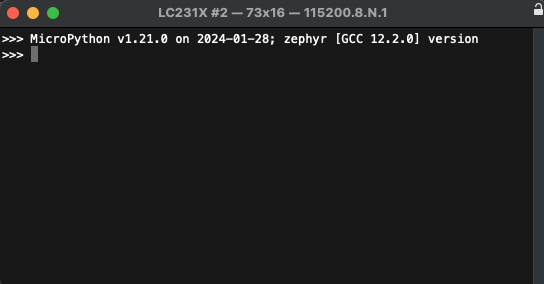
If you do not see this output, you can press ctrl+D on the terminal to reboot the MG100 and output similar to the above will appear in a serial terminal.
If you do not see any output similar to above, you may need to load Canvas Firmware onto your MG100. To do so, follow the steps in the next section to update your Canvas Firmware.
Pinnacle 100 DVK
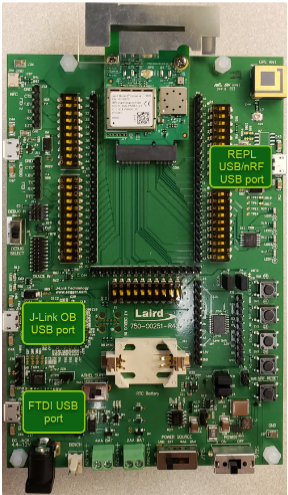
The Pinnacle 100 DVK operates the same way as the MG100. Connecting to the board is the only major difference.
The REPL USB port will be used for all python development.
The J-Link OB USB port is used to program firmware into the Pinnacle 100 modem.
The nRF USB port gives the user access to the Zephyr RTOS shell for additional debugging.
Updating Canvas Firmware
This firmware programming process is needed the first time only. After that, the core firmware can be updated over BLE, from the cloud, or over UART.
Downloading the Latest Firmware Image
The latest version of Canvas Firmware can be found here:
https://github.com/Ezurio/canvas_python_firmware
Download the latest version of the .zip file (name starting withmg100). It contains a .hex file starting with mg100. The hex file is used to program a complete firmware image onto the MG100.Hardware Requirements
TC2030-CTX 6-Pin Cable for ARM Cortex - Normal Orientation
USB-SWD 453-00062-K1
- https://www.ezurio.com/wireless-modules/programming-kits/usb-swd-programming-kit
- USB SWD Firmware must be latest version as demonstrated in section 12 of the following guide: Application Note - Using the USB-SWD Programmer (software v2.0)
Hardware Configuration
- Remove the 4 screws from the back side of the MG100.
- Remove the top clamshell, disconnect the NFC antenna, and place the screws in the top clamshell for safe keeping.
- Using the pins on the Tag-Connect cable, align and then attach the cable over J5 on the MG100.
- Attach the other end of the cable to the “Debug” header on the USB-SWD.
- Set
sense supplyswitch toout, andtty voltageswitch to1.8v.
tty voltage to 3.3v can damage the boardProgramming the Firmware onto the MG100
Programming firmware onto the MG100 depends on pyocd which requires Python to be installed on your workstation. We recommend installing Python v3.11.6 on your workstation for best compatibility with Canvas Tools. Note that Python v3.12 does not work properly with pyOCD and Canvas Tools as of the writing of this document.
Using pyocd From the Command Line
With Python 3.11.6 installed, you can find more details on how to install and use pyocd here: https://pyocd.io/docs/installing . Once pyocd is installed, you can use it from a command line to program the DVK board as follows:
pyocd flash -t nrf52840 -e chip mg100_1.0.0.1707230116.hexProgramming the Pinnacle 100 DVK is as easy as connecting to the J-Link OB USB port and using the same command to flash the Pinnacle 100 DVK firmware image.
For the Pinnacle 100 DVK, the REPL USB port must be plugged in at the same time the J-Link OB USB port is for programming. This is because the REPL USB port has control over the nRF52840 reset line. If the REPL USB port is not plugged in, the nRF52840 will be held in reset and programming will not work.
Interacting with the Python REPL
The Canvas Firmware provides a Python execution environment right on the MG100. This environment can be interacted with through the Python REPL serial port. The Xbit VS Code extension will automatically detect this serial port and provide easy access to the REPL terminal.
To access the Python REPL, ensure your MG100’s USB port is attached to your workstation and open the Xbit VS Code extension. Navigate to the USB DEVICES panel and locate the serial port associated with your DVK board. Click the board name to connect to the board and expand a listing of its filesystem. In the lower right, you’ll find a tab labeled TERMINAL. If you press the ENTER key in the TERMINAL panel, you’ll see the REPL prompt for the device (>>>). From here, you can type Python commands interactively with the board.In the screen shots below the board shown is different from the MG100. The screen shots are still accurate with their content. Just replace the “Sera NX040 DVK” with the name of the device on your system.
Interacting with the Pinnacle 100 DVK works the exact same way when connected to the REPL USB port.
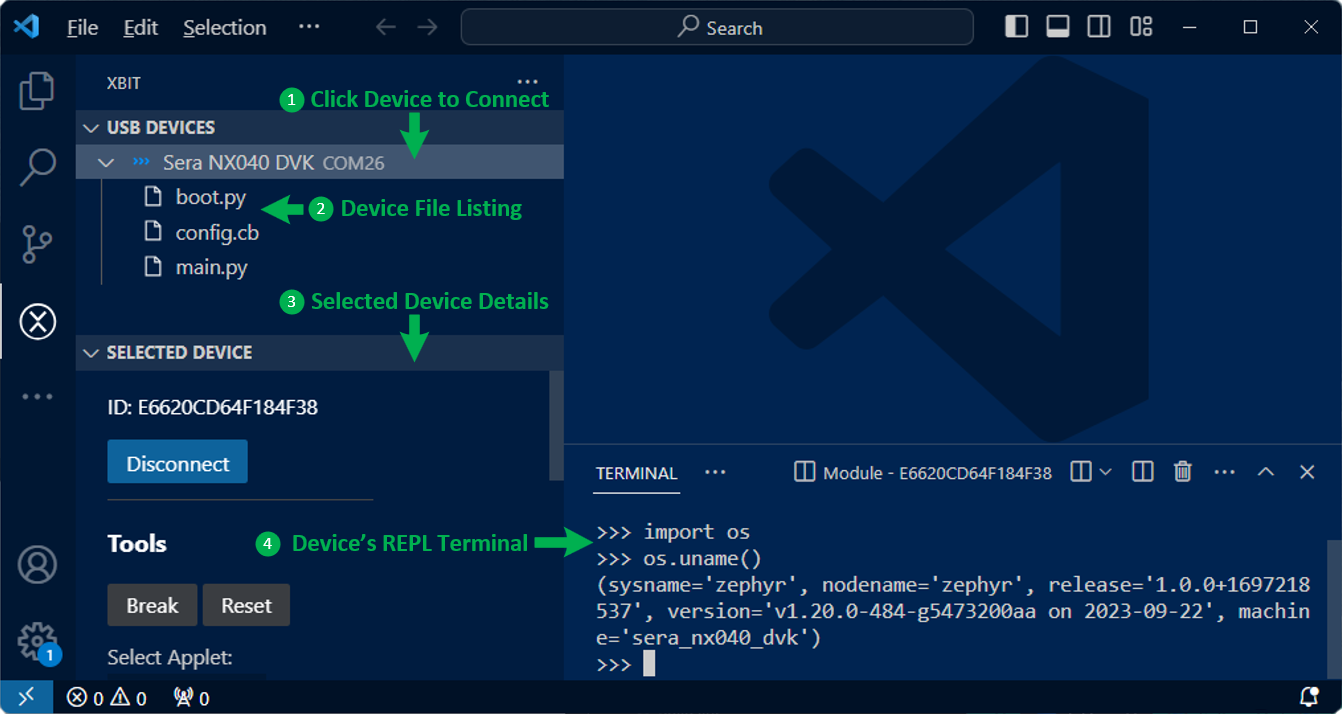
One common set of commands provides an easy way to find the Canvas Firmware version running on your device. Type the following lines, pressing ENTER after each one into the REPL terminal to display the system version information. The Canvas Firmware version is the string value for the property named release.
>>> import os >>> os.uname()If the commands were issued properly, you should see a Python tuple displayed similar to the following:
(sysname='zephyr', nodename='zephyr', release='1.0.0+1707230116', version='v1.21.0 on 2024-01-28', machine='mg100')Creating a Python File
The Python interpreter built into the Canvas Firmware running on the MG100 is designed to look for two specially named Python files in its filesystem at system boot. These files are namedboot.py and main.py. If a file named boot.py exists in the filesystem, the Python code in that file will be executed automatically on boot, allowing you to easily configure the hardware for your preferred startup conditions. After executing the boot.py script, the interpreter looks for a main.py and if it exists, executes it. This allows you to automatically launch a Python script application after system boot.To create a Python file on the device, right-click the device name in the USB DEVICES panel in the Xbit VS Code extension and select Create File. This will bring up a field where you can specify the name of the file (e.g., main.py).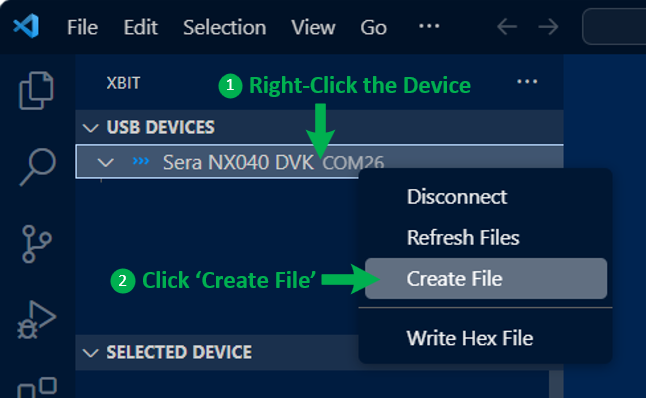
The new file will now appear in the file listing under the device in the USB DEVICES panel. To edit the file, click on the file in the panel and a new editor tab will display. You can now type in this editor and save using FILE → SAVE or the hotkey for saving a file on your platform to save the updated file back to the device. To edit a file already on the device, just click the name of the file and an editor tab will open where you can modify and save the file like you usually would any text file within VS Code.
Next Steps
Now that you have your MG100 connected to your workstation and have the Xbit VS Code extension up and running and interacting with the board, you are ready to try out some sample Python applications or develop your own. Note that sample applications may not be namedmain.py, in which case in order for the script to run on startup, simply rename the script to main.py before loading to the board or use the Right-click context menu within Xbit VS Code extension to rename the file to main.py in order for the device to automatically run the script after a reset.Python Sample Applications
We’ve provided a set of simple Python applications for you to get started with some simple examples and test out the hardware. These samples are hosted in a public GitHub repository and will evolve over time to include more examples of exciting things you can do with Python on the Canvas Firmware with your device. Please check this GitHub repository for a list of sample applications:
https://github.com/Ezurio/canvas_python_samples
NOTE: Not all sample applications work properly with all Canvas Firmware supported hardware. Please take note of the requirements described in each sample application to ensure it is compatible with your hardware. The Canvas API Compatibility Table is a useful resource for determining which Python APIs are available on each Canvas-enabled hardware product.
Python API Documentation
Once you’ve taken a look at some sample applications and start to become familiar with how Python can be used to develop applications on the device, you can check out our detailed Python API documentation for more details on what hardware is accessible from Python and how to use it.
Canvas Python API Documentation on GitHub
Canvas API Compatibility Table
The following table lists the specific Python APIs available on the MG100.
Python API Compatibility
| MG100 | Pinnacle 100 DVK | |
|---|---|---|
| machine.Pin |  | |
| machine.I2C | | |
| canvas_ble.GattServer | | |
| canvas_ble.GattClient | | |
| canvas_ble.Connection | | |
| canvas_ble.Advertiser | | |
| canvas_ble.Scanner | | |
| canvas.Timer | | |
| canvas_ble(Common) | | |
| Networking | | |
| Sockets | | |
| TLS | | |
| FloatingPoint | | |
| canvas.zcbor | | |
Canvas Firmware Feature Support
| MG100 | Pinnacle 100 DVK | |
|---|---|---|
| OTA FW Update | | |
| MicroPython Engine | | |
| Filesystem | | |
| RTOS Shell |  | |
| Xbit VS Code | | |
| AT Command Set | | |
| Host Driver | | |
| Xbit Desktop | | |
| Xbit Mobile | | |
MG100 Features

LEDs
The MG100 has three user LEDs that can be controlled from python.
On boot the LEDs are turned off by default.
>>> from machine import Pin >>> r_led = Pin("LED_RED", Pin.OUT, 0) >>> r_led.on()Button
The MG100 has a single user button
>>> from machine import Pin >>> button = Pin("BUTTON", Pin.IN, Pin.PULL_UP) >>> def button_event(e: int): ... print('button pressed') ... >>> button.configure_event(button_event, Pin.EVENT_FALLING) >>> button pressed button pressedPinnacle 100 DVK Features
LEDs
The Pinnacle 100 DVK has four user LEDs that can be controlled from python.
On boot the LEDs are turned off by default.
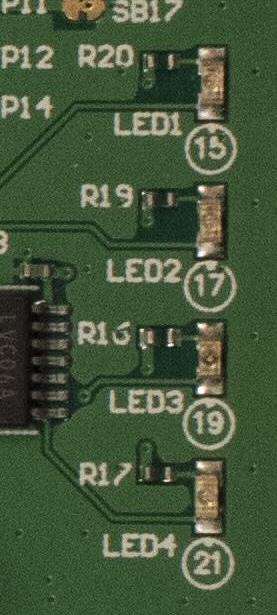
>>> from machine import Pin >>> b_led = Pin("LED1", Pin.OUT, 0) >>> b_led.on()Buttons
The Pinnacle 100 DVK has 4 user buttons and a reset button to reset the modem.

>>> from machine import Pin >>> button = Pin("BUTTON1", Pin.IN, Pin.PULL_UP) >>> def button_event(e: int): ... print('button pressed') ... >>> button.configure_event(button_event, Pin.EVENT_FALLING) >>> button pressed button pressed