/filters:background_color(white)/2025-05/453-00052%20-%20Front.png)
/filters:background_color(white)/2024-01/BL54L15-Group.png)
/filters:background_color(white)/2024-06/BL54L15ug_SA%20and%20ST-right11.363.png)
/filters:background_color(white)/2024-10/BL654-Series.png)
/filters:background_color(white)/2024-11/BT510-1.png)
/filters:background_color(white)/2024-03/canvas-software-suite-red.png)
/filters:background_color(white)/2024-03/Lyra%2024%20-%20Collection1.png)
/filters:background_color(white)/2024-11/Pinnacle-100---Ext-Ant---Front-crop_1.png)
/filters:background_color(white)/2024-11/BT610.png)
/filters:background_color(white)/2024-11/MG100%20-%20Canvas1.png)
/filters:background_color(white)/2024-03/Family%20-%20Sera%20NX040%20-%20Embossed%20-%20nxp-nordic.png)
/filters:background_color(white)/2025-01/453-00219%20front4.416.png)
Canvas Device Firmware Components
Canvas device firmware comprises a Bootloader, Canvas Core Firmware image(s) and a file system containing Python App (script) files.
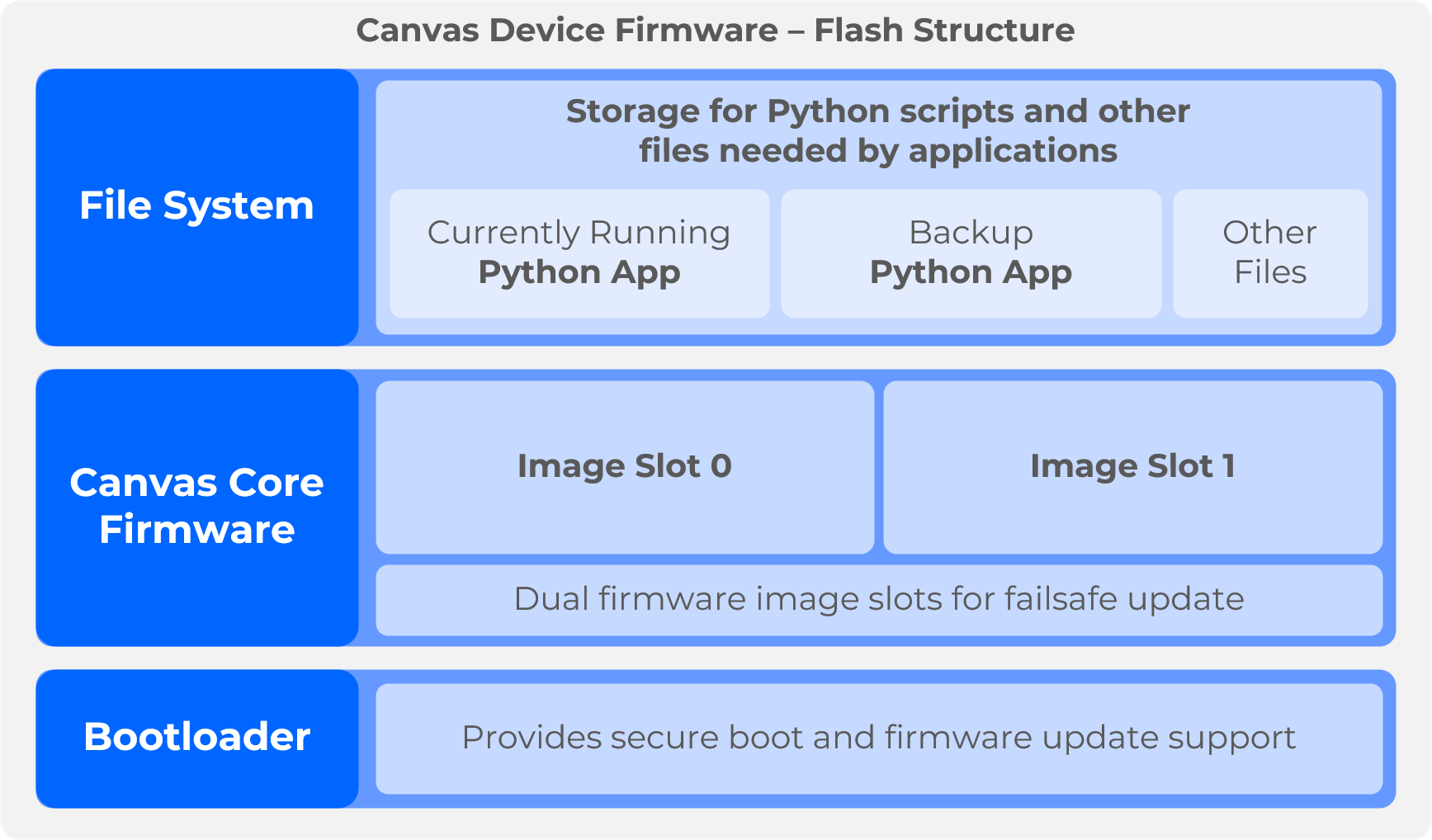
- Bootloader - The Bootloader provides secure boot and firmware update support for the Canvas Core Firmware.
- Canvas Core Firmware - The Canvas Core Firmware provides update support for files in the file system including updates to the Python App. Dual image slots provide a failsafe update process.
- Python App - A set of Python script (.py or .mpy) and other supporting files defining the application running on the device, often deployed as a packaged .zip file.
The following sections describe the firmware update process for the Canvas Core and Python App residing on the device.
Core Firmware
The core firmware (.bin) can be updated using 3 methods.
BLE SMP
To update the core firmware, the BLE Simple Management Protocol (SMP) service is available when in a connection. The user script must advertise in order to start a connection. If there are no scripts on the device, a default script will run and advertise. A central device can connect and use the SMP service.
The following Python CLI can be used to update devices over BLE: https://pypi.org/project/smpmgr/
- The image management commands are used for updating the core firmware: https://docs.zephyrproject.org/latest/services/device_mgmt/smp_groups/smp_group_1.html
If you do not want to use the BLE SMP service, it can be disabled with this API. Once disabled, the service will not be available when in a BLE connection.
It is important to call this API at least once from your application to ensure the user Python application runs after flashing a new image.
Example using the CLI to update firmware:
smpmgr --timeout 10 --ble Canvas28 upgrade --slot 1 my_firmware.binXbit Canvas Hub Tool
The Xbit Desktop and Xbit Mobile applications included with Canvas Software Suite provide access to a list of Applets for communication with BLE-enabled Canvas devices. The Canvas Hub applet offers firmware update, Python app update and file transfer from a streamlined user interface.
 To update the Canvas firmware using Canvas Hub, select the device from the BLE device list. Next, select the firmware
 .bin file to send to the device. Finally, press Start Update to begin the update process. After transfer, the device will reset and the bootloader will apply the new firmware image.Canvas DFU API
Instead of using the BLE SMP service to update the core firmware, the DFU API can be used.
The DFU API allows a Python app to flash a firmware file into the update slot and apply it.
This allows the user to transfer a firmware update file to their device by any transport they wish and then apply it.
This sample demonstrates how to use the DFU API.
Bootloader Recovery
Some devices support bootloader recovery mode.
This mode forces the device to boot into the bootloader so firmware can be updated over UART.
To enter bootloader recovery mode, the device BOOTL_REC pin must be held low while the device is reset. When the device is in bootloader recovery, it will indicate this by setting BOOTL_IND pin high.
When in recovery mode, the device can be updated over UART using the SMP UART protocol.
The smpmgr CLI supports updating a device over the UART.
You can find information on support for this mode from the hardware documentation in the firmware repository. For example, the BL54L15 module supports this functionality.
Python App
SMP is also used for updating the Python application. The file management commands allow updating files on the filesystem. https://docs.zephyrproject.org/latest/services/device_mgmt/smp_groups/smp_group_8.html
Using SMP file management commands, the user can manage the Python app updates however they wish.
For example, using the CLI to upload a file:
smpmgr --timeout 10 --ble Canvas54 file upload serial_number.txt /lfs1/scripts/serial_number.txtApp Update Package
To streamline and secure application updates, the firmware supports packaged script deployments. This system uses a single ZIP archive containing your application scripts and a manifest file. This approach ensures that applications can be updated reliably and protected from unauthorized modifications.
The Update Package
The core of this system is theupdate.zip package. This archive contains:- Application Scripts: All the files (
.pyor other) required for your application to run. - Manifest File: A
manifest.jsonfile that catalogues the contents of the package. It contains a verification string for each file in the package. This is either a SHA256 hash or an ECDSA-SHA256 signature. - Manifest Signature: For packages that use ECDSA-SHA256 signatures for package contents, the package will also contain an ECDSA-SHA256 signature of the
manifest.jsonfile in a file namedmanifest.sig.
At boot time, the firmware uses the hashes/signatures in the manifest to verify the integrity of each script file on the filesystem, providing a robust defense against tampering.
Generating the Update Package
You must use the officialcanvas_packager.py tool to generate a valid update package. This tool creates the manifest file, computes the hashes, and packages everything into the required ZIP format.Tool: https://github.com/Ezurio/canvas_python_host_tools/blob/main/canvas_packager.py
How to Run the Tool
The tool requires two main arguments to run: a version number and the directory containing your application scripts.
Basic Syntax
python canvas_packager.py --version <VERSION> [--sign <key file>] <directory>--version(Required): The version number for your application package (e.g., "1.0.2").--sign(Optional): Provide a private key to be used to create signatures (instead of plain SHA256 hashes) used to verify the authenticity of the package and its contents.directory(Required): The path to the folder containing your application scripts. The name of this directory will also be used as the base name for the output ZIP file.
Example
Let's say your Python scripts are in a folder namedmy_app. To create an update package for version 1.1.0, you would run:python canvas_packager.py --version "1.1.0" my_appmy_app_1.1.0.zip in your current directory. This is the file you will deploy to the device.Advanced Options
--exclude <FILE_OR_DIR>: Use this to exclude specific files or directories from the verification process. This can be useful for configuration files that are intended to be modified on the device.
Signing Keys
With the--sign option, a private key file must be provided. A corresponding public key will be loaded onto the device. The private key is used to create the signatures and the public key can be used to verify them. The system uses only prime256v1 EC keys for these operations. Key pairs can be created using OpenSSL and the following commands:openssl ecparam -name prime256v1 -genkey -noout -out script_key.priv
openssl ec -in script_key.priv -pubout -outform DER -out script_key.pubThe private key is typically stored in PEM (text) format. The firmware requires the public key to be in DER (binary) format. Keep the private key stored in a safe location.
Deploying the public key to the device involves writing the key into a specific file in the device’s file system:/lfs1/scripts/update/script_key.pub if using SMP over BLE or /update/script_key.pub if transferring the file over REPL. The key will be “applied” on the next reboot of the device (moved to a secure location). The public key on the device is “write once” and “write only.” That means once a valid key has been written, the key cannot be read or changed without erasing the entire device filesystem.Deployment Process
Deploying a new script package to a device is a simple three-step process:
- Generate Package: Create the
.zipfile using thecanvas_packager.pytool. Rename this file toupdate.zip. - Transfer File: Copy the
update.zippackage to the device's filesystem at the following specific path:/lfs1/scripts/update/update.zipif using SMP over BLE.- If transferring the file over REPL, the path will be
/update/update.zip
- If transferring the file over REPL, the path will be
- Reboot Device: On the next reboot, the firmware will automatically detect, verify, and unpack the archive, completing the update.
Installing a Python App using Xbit Canvas Hub
The Canvas Hub Applet offers a simple approach to installing packagedupdate.zip files to Canvas devices over Bluetooth. To send an update.zip file to a device from Canvas Hub, launch the applet and select Install Python Application. Click Select App File (.zip) and select the update.zip file to send. To install the package, click Start Install. The update.zip file will be transferred to the device over BLE and then reset to complete installation of the new app.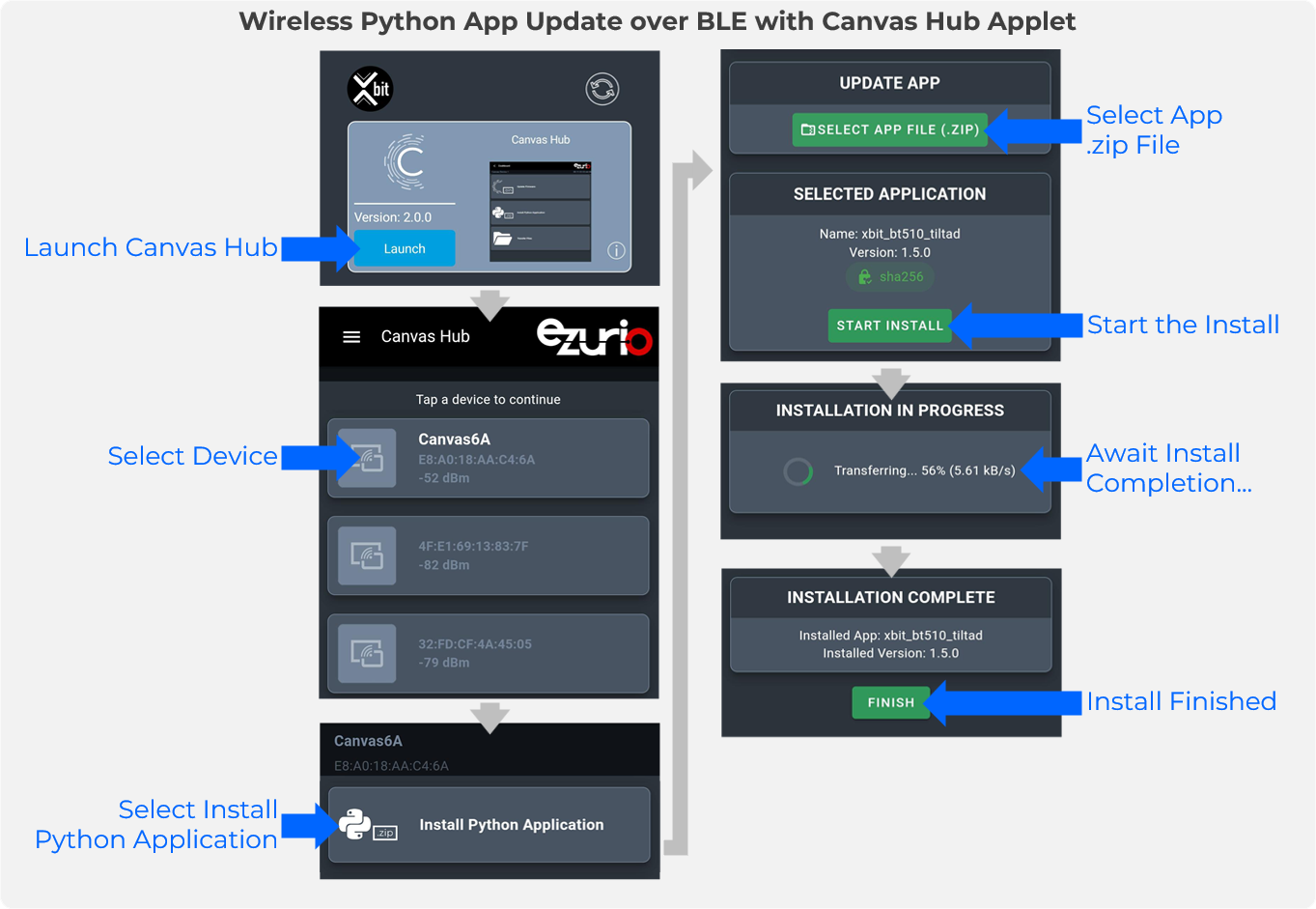
Secure Boot with Strict Verification
For maximum security, the firmware can be configured to use a "strict" verification mode. This feature ensures the application scripts are always in a known-good state. On every boot, the system performs the following checks:
- Integrity Check: Verifies that each script file in the active scripts directory matches its hash in the manifest. Any files or directories listed in the
--excludeoption to the packager tool are exempt from this check. - Tamper Check: Ensures no script files have been added to or deleted from the directory.
This verification process has two possible outcomes:
- If verification fails: The firmware considers the application corrupt. It deletes the entire scripts directory (except for files/directories listed in the
--excludeoption to the packager tool) and restores it from a known-good backup. This provides automatic recovery from a corrupted or tampered state. If verification succeeds:
- If a backup does not already exist, the firmware creates one by copying the now-verified active scripts to a backup location.
- If a backup does exist, the boot process continues normally.
If this strict verification mode is not enabled, all other features work as described, however the verification step at each boot will not take place. The ZIP file will be verified when it is unpacked, but never again. This mode of operation is useful during development, when contents of individual files may be changing.
Strict verification is enabled at run-time by writing a specific file to the filesystem and then rebooting the device. When written over SMP over BLE, the file is/lfs1/scripts/update/strict. When written over the REPL, the file is /update/strict. The file can be empty. Like the public key, this feature is “write only.” Once strict verification is enabled, only erasing the entire filesystem can disable it.Firmware/Script Signing and Integrity Checking
Canvas Firmware ships with a bootloader capable of securely updating the firmware from a secondary image slot or in some cases a serial recovery feature. Python Applications may be packaged as .zip files with an embedded manifest with signature and hash values for the files within the package. The Canvas Firmware may be configured to validate a Python Application package’s signature if a public signature verification key is installed and will also verify the hash value for each file in the package before installing the application.
The diagram below illustrates how Ezurio provides signed Canvas Firmware with the ability for device manufacturers integrating Ezurio modules to build signed Python Application Packages (.zip) with signature validation and hash verification for integrity checking of application files.
