/filters:background_color(white)/2024-03/canvas-software-suite-red.png)
/filters:background_color(white)/2024-11/Pinnacle-100---Ext-Ant---Front-crop_1.png)
/filters:background_color(white)/2024-11/MG100%20-%20Canvas1.png)
Introduction
The Pinnacle 100 (and by default the MG100 Gateway) is supported by Canvas Platform Firmware as part of the Canvas Software Suite. This firmware provides developers a path to quickly design and build applications using the Python language and leverage Python-based APIs for access to the underlying hardware and radio feature set. This guide focuses on how Pinnacle 100Canvas firmware, HL7800 modem firmware and applications can be updated in the field via Over The Air Updates (OTA) using Leshan Server which is an open-source implementation of the Lightweight M2M (LwM2M) protocol. Leshan server fully supports the LwM2M protocol, which is standardized by the Open Mobile Alliance (OMA). LwM2M is specifically tailored for managing constrained devices in IoT, providing features like remote device management, firmware updates, and telemetry data collection.
Note: The Pinnacle 100 modem is also used on the MG100 modem. Throughout this document the Pinnacle 100 is referenced but all topics are similar when using the MG100.
Getting Started
Pinnacle 100
The Pinnacle 100 cellular modem is equipped with a USB port which connects directly to the nRF52840 MCU and is used to provide access to the Python REPL. This is the primary interface you will use when developing software for the PG100. The J-Link OB USB port is used to program firmware into the Pinnacle 100 modem.

Note: When developing on the REPL USB port, the FTDI USB port also needs to be plugged in to provide power to the Pinnacle 100 and rest of the components on the DVK.
When you plug a micro-USB cable from the REPL USB port into your workstation, the Pinnacle 100 hardware is auto-detected and drivers are installed for the serial port. The serial port will provide access to the Python REPL prompt (>>>). You can attach to the serial port with 115200 baud, 8N1 to verify the Pinnacle 100 is running Canvas Firmware.

If you do not see this output, you can press CTRL+D on the terminal to reboot the Pinnacle 100 and output similar to the above will appear in a serial terminal.
If you do not see any output similar to above, you may need to load Canvas Firmware onto your Pinnacle 100. To do so, follow the steps described in the MG100 and Pinnacle 100 Software Users Guide to update your Canvas Firmware.
MG100
The Sentrius™ MG100 operates the same as the Pinnacle 100 and is equipped with a USB port used to provide access to the Python REPL. This is the primary interface you will use when developing software for the MG100. The on/off switch must be switch to the position away from the USB port to turn the device on.

This USB port connects to an on-board FTDI USB to UART IC.
LwM2M Python Sample Application
We’ve provided a set of simple Python applications for developers to get started with and for demonstration of OTA the LwM2M python script is used. Please check this GitHub repository to download the application and review the README included for information about the script. Many applications also have dependencies and require other python files to be loaded onto the device. For the LwM2M application the net_helper.py script from modules/networking needs to also be loaded.
Next Steps
To load the LwM2M and net_helper.py scripts we will be using VS Code with the Xbit Extension. Refer to the Canvas Python Users Guide for details.
Click on the COM port in USB Devices to connect to the python REPL.

The REPL prompt will be visible in the VS Code TERMINAL window. Hit enter to ensure you are connected and have access to the REPL.

You can now simply drag and drop the LwM2M.py application and net_helper.py module directly onto the COM port. The files will be copied directly onto the Pinnacle 100.

Click on main.py file to view the code.

The Eclipse Leshan project hosts a demo server that is available for use publicly. For demonstration purposes, Ezurio makes use of the demo server for Firmware Over The Air Updates (FOTA). Note this is a demo server only and is not secure in a production environment. Customers can setup and use their own server in AWS, EdgeIQ or any other cloud based server.
In the code snippet above the server URL for the demo server is set in line 18,
server_url = "coap://leshan.eclipseprojects.io:5683"
The endpoint name is set to a default concatenation of my-device and the IMEI number associated with a users Pinnacle 100. To make it easier to determine which Pinnacle 100 is yours specifically you can change the endpoint name to something more discernible. For this application note it is changed to “my-device_AppNote_”
endpoint_name = "my-device_AppNote_" + binascii.hexlify(machine.unique_id()).decode()
Run the Application and Connect to the Server
Reset the Pinnacle 100 to run main.py. A simple way from within VS Code is to type CTRL+D at the REPL prompt in the TERMINAL window. You should see the following output in the terminal as the Pinnacle 100 tries to connect with the server.

As shown in the output, the Pinnacle 100 is able to successfully complete registration.
View Pinnacle 100 on LeShan Server
Click on the link to the demo LeShan server and you should be able to find the Pinnacle 100 gateway in the list of registered Clients.

Click on the Client to view details.

One of the first changes you’ll make is to the Timeout value. This typically will default to five seconds. This value specifies latency for commands and response time. For example, if you issue any commands and it doesn't respond within 5 seconds, an error is generated. In the above example, it’s been changed to 30 minutes. From this point on, this value persists only for you.
OMA Lightweight M2M (LwM2M) protocol specifies objects, which are designed to manage and monitor IoT devices in a standardized way. Objects represent different types of data or functionalities that an IoT device can support.
The current view above is the Device object (object ID 3) which includes information about the device itself, such as manufacturer, model, serial number, firmware version, and battery level. We use this object to view current Canvas firmware version programmed on the device.
In the options next to Instance 0 of the device, click the Read button (R) to view current firmware version.
Update Canvas FW
Click on Firmware Update Object 5. Object 5 is used to manage firmware updates on the device, including triggering updates, checking firmware versions, and verifying update statuses.

Click the Read button next to Instance 0 banner.
The package URI is used to fetch an image. Supported formats are HTTP, HTTPS and CoAP. The easiest ways to to get an image to the device is using HTTP and CoAP. If you place the Canvas Firmware on a server that allows for HTTP transfers you can use HTTP for simplicity, so you don’t have to worry about handshake security. Going forward we will be utilizing HTTPS with certificates. The the latest firmware releases can be found on the Ezurio Canvas Firmware Releases GitHub page. Transfer of files from this page can’t be done directly. For this note the files are copied to an Amazon AWS S3 Bucket.
Firmware Update Using HTTPS
To get HTTPS working there needs to be a certificate resident on the Pinnacle 100. First a folder needs to be created on the Pinnacle 100. Right click on the COM port under USB Devices and select Create Folder and name the folder certs_fs.

With the Canvas FW being stored in an AWS S3 bucket, the root CA is downloaded directly from the Amazon trust services repository. A user will have their own HTTPS server and will need to put their proper certificate onto their file system.

After the PEM file is downloaded, it can be dragged directly into the certs_fs directory on the device.
The file then needs to be renamed to ca.crt


With the Certificate written onto the device type CTRL+D to reset the Pinnacle 100 and initiate a new session with the LeShan server.
Now we can provide the HTTPS link from AWS S3 and our device will be able to do the proper TLS handshake and download a file over HTTPS.
On the Object 5 Firmware Updates page, click on the Write button (W) on the Package URI. This will open a page where we can specify the path to the firmware binary stored on the AWS S3 bucket.

Add the path to the Pinnacle 100 Canvas firmware binary and click Write.

The file is now being written and will take several minutes to complete. The status of the download can be observed by clicking on the OBS button for the Instance. The state can be observed with State indicating 1, Downloading.


When the download is complete the state with indicate 2, Downloaded. We can now read the PkgName and see the firmware version is what was downloaded.

Now you can click on Execute. The Pinnacle 100 will reboot and connect again to the LeShan server with the new firmware running.
When execute completes and the Pinnacle 100 reboots, Update Result shows a status of 1, Firmware updated successfully.

We can also look on the Pinnacle 100 terminal and see when the device has been rebooted and reconnected to the LeShan Server.

Updating HL7800 FW
Previously OMA Object 5 was used for Firmware Updates. Object 9 will now be used for other SW updates including the HL7800 FW. Object 9 allows for two Instances and Instance 0 is used for HL7800 FW.
As of the time of this note HL7800 4.7.1.0 is the latest FW supported on the HL7800. If reading the PkgVersion yields a version earlier that 4.7.1.0, it will need to be updated.

Similar to Object 5 Firmware Updates, The HL7800 FW can be specified via the Package URL. Update State and Update Result can be observed to monitor file loading status.
Customers can download and maintain update files on their own secure server. HL7800 FW can be downloaded from the following link:
FW upgrades by Sierra Wireless are done in iterative steps and cannot be simply updated to the most current version depending on the version of HL7800 FW resident on the modem.
As an example, if FW on the HL7800 is currently at 4.6.9.4, the upgrade file needed to update to the latest allowed is HL7800_4.6.9.4_to_4.7.1.0ua.
For this note update files are also kept in the same AWS S3 as the Canvas FW.
Click in the Write button (W) in the Package URL and specify the path where the update file resides. When the URL has been provide click on Write.

Update State and Update Result work in conjunction. both will show a 1 while the FW update is in process,

When the file has been loaded Update State will show a 2 while Update Result returns to 0.

Now the Install can be Executed by clicking on the EXE button.

Note the Install process may take up to 10 to 15 minutes given the file size. The entire process of updating each each update file version can take as much as 20 minutes to 30 minutes.
Note It is very important that once the HL7800 FW install is taking place it must not be disrupted. This may result in the HL7800 being in an unrecoverable state.
While HL7800 4.7.1.0 is the latest currently available FW version, it should be noted there are two versions of 4.7.1.0, HL7800_4.7.1.0.rc10.ua and HL7800_4.7.1.0.rc12.ua. Above we downloaded HL7800_4.7.1.0.rc10.ua. The same procedure must be followed to update from HL7800_4.7.1.0.rc10.ua to HL7800_4.7.1.0.rc12.ua
Updating Python Application Files
Python applications can be updated using Object 9 Instance 1.

However, a Software Packager Tool must be used first and can be downloaded from the following Git Page:
https://github.com/LairdCP/canvas_software_packager
The Canvas Software Packager will take one or more files needed by your application and it will package all of the the Python files into a zip file that has no compression and also create a manifest that names your Python app and versions it for you.
You can pass in the version on the command line as an option, so this gets you one file package that's versioned. This allows you to now create effectively a full Python app in a single file with a version, and it uses SHA-256 to do the hash on every file. When that gets extracted on the on the device as part of the firmware update process, it verifies there's no corrupt data.
Running Software Packager
Copy the canvas_packager.py file to a folder where the command is run via command line. The python applications are then placed in a sub-directory (or directory that will be pointed to in command). In this example the python application lwm2m.py (main.py renamed to lwm2m.py) is copied into a directory named applications.

Open a command window and from the directory where canvas_packager tool resides type the command:
python canvas_packager.py --version 0 applications
Version is set to match desired revision.
Now the applications_0 zip file has been created and contains both the python file and json manifest.

Loading Python Application Onto Device
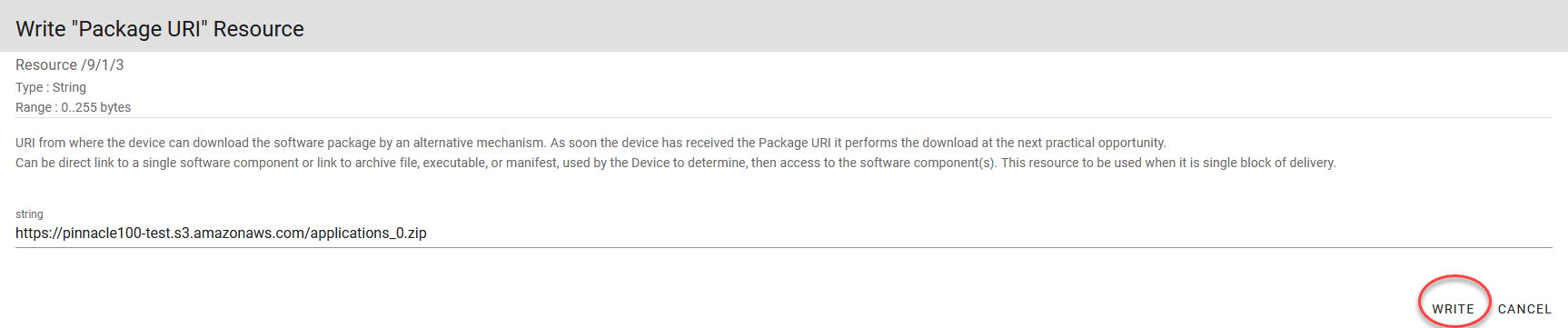
Using the same procedure as previously with Canavs FW and HL7800 FW updates, the python applications zip file is placed into the AWS S3 HTTPS server (an HTTP server can also be used). Using Object 9 Instance 1, click on the Package URL Write button (W) to add the link to the zip file.

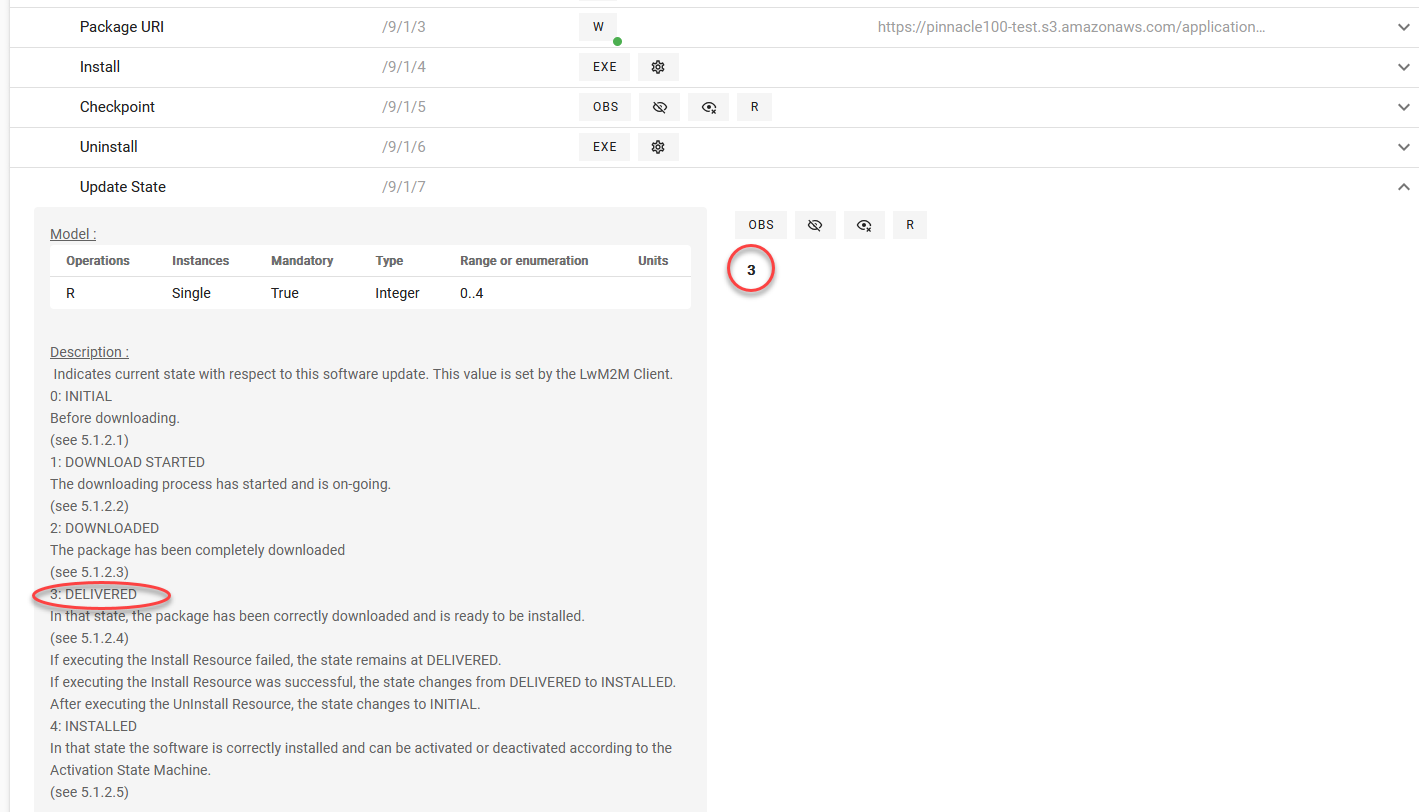
Reading the Update State, a value of 3 is observed. Expanding this field shows a 3 indicates the package has been correctly downloaded and is ready to be installed.
Update Result also shows a status of 3 indicating the package has been successfully downloaded and the integrity of the package is verified.

As done before, click on Execute (EXE) to complete the install. Note when the installation has completed both Update State and Update Result have returned to a status of 0.

When executing the install you can see the Pinnacle 100 start up and re-establish the LwM2M connection with the server.

Now with a port refresh you can se the file lwm2m.py is present on the device.
