/filters:background_color(white)/2024-03/canvas-software-suite-red.png)
/filters:background_color(white)/2024-11/Pinnacle-100---Ext-Ant---Front-crop_1.png)
/filters:background_color(white)/2024-11/MG100%20-%20Canvas1.png)
Introduction
With Canvas firmware programmed on the Pinnacle 100 and MG100, HL7800 update files can be easily copied into the nRF52840 file system and then transferred onto the HL7800 by running a modem update python script.
Refer to the following link for information on loading Canvas firmware.
https://www.ezurio.com/documentation/software-user-guide-mg100-and-pinnacle-100
Getting Started
VS Code Development Environment
VS Code IDE is used as the environment to connect to the modem, copy files and run the needed python script. Ezurio has developed an XBit extension for VS Code that can be added from within VS Code Extensions as described in the following Application Note.
https://www.ezurio.com/documentation/user-guide-canvas-python
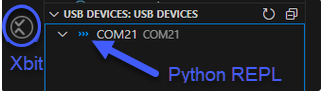
With the modem plugged into your machine click on the xbit symbol on the left side of VSCode.
You should now see the COM port your Pinnacle 100 or MG100 is plugged into. It will show as a Python REPL. For Pinnacle 100 this is the nRF USB port. For the MG100 this is the FTDI port.
Reading HL7800 Firmware Version
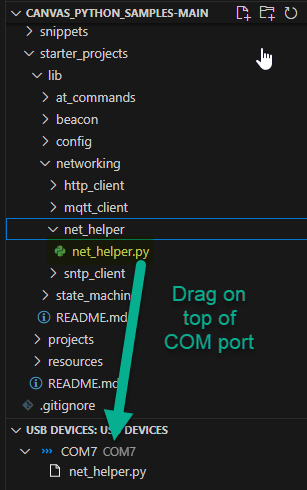
The HL7800 FW version can be read directly from the Python REPL with just a few commands. Canvas Software Suite provides custom Python modules for networking which are used to interface to the modem. The module net_helper.py provides the python class NetHelper which needs to be instantiated for use. First, the module must exist in the device's file system, this is easily done using XBit drag and drop facility. Drag and drop the net_helper.py file onto the device by its listed COM port.
From the python REPL import net_helper module.
>>> import net_helper
Set a variable named net.
>>> net = net_helper.NetHelper(None)
And the HL7800 FW version can be read.
>>> print(net.modem.get_firmware_version())
HL7800.4.7.1.0
HL7800 Firmware
FW upgrades by Sierra Wireless are done in iterative steps and cannot be simply updated to the most current version depending on the version HL7800 FW resident on the modem. HL7800 FW can be downloaded from:
As an example, if FW on the HL7800 is currently at 4.4.14 the upgrade file needed to update to the latest allowed is HL7800_4.4.14.0_to_4.6.9.4.ua. NOTE: The update files can have lengthy names. There are limits in firmware for length so it is advised that the files be renamed to something shorter. For example, HL7800_4.4.14.0_to_4.6.9.4.ua is provided as HL7800_4.4.14.0_to_4.6.9.4_allBin_nbIOT11_sig11.ua
Copy this file by dragging and dropping it on top of the listed COM port in VS Code (COM7 in this example) to download it to the file system on the nRF52840. Before copying file ensure there are no applications running. This will take a few minutes to copy onto the device given it’s greater than 1MB size.
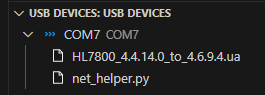
Once the file is downloaded, add the HL7800 firmware_update script to the devices file system using XBit drag and drop facility as was done previously. Drag and drop the script file onto the device by its listed COM port.
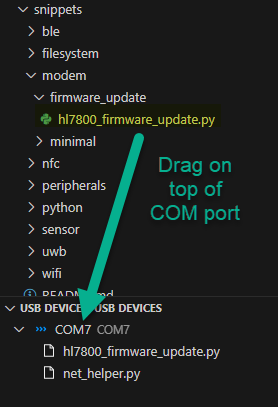
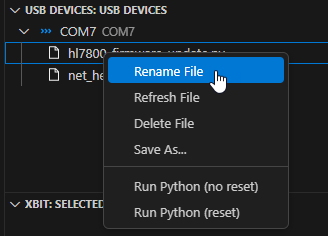
Right click on hl7800_firmware_update.py and rename file to main.py
Click on main.py and in the editor type the following python code to modify the name of the upload image that is resident on the devices file system (as viewed on the COM port). In this case 'HL7800_4.4.14.0_to_4.6.9.4.ua'.
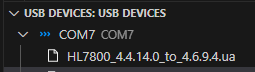
# Change this filename to the correct firmware file you want to use
UPDATE_FILE = 'HL7800_4.4.14.0_to_4.6.9.4.ua'
Note, when dragging and dropping the file on top of the COM port it is written to the nRF52840 BLE MCU files system. When finished editing the Update File name type ctrl+S to save the script onto the device.
Reset the unit by typing ctrl+d in the Vs Code terminal window and the FW will be downloaded onto the HL7800.
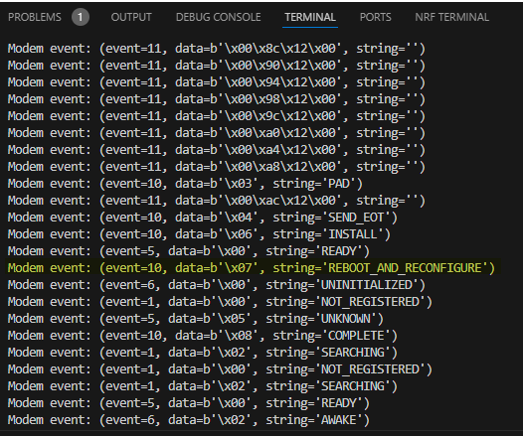
After the HL7800 reboot is complete you will see the following log output. Note: Do not interrupt the download as the modem may be non-recoverable.
You will need to do this for each iteration of firmware upgrade needed. In this example, delete HL7800_4.4.14.0_to_4.6.9.4.ua from the device file system by right clicking on the file and selecting delete. Then follow the same procedure to upgrade to HL7800_4.7.1.0.rc10_to_4.7.1.0.rc12.ua. This is the latest FW version during the time of writing this application note.
For the example provided in this application note three upgrade iterations are necessary. Depending on the version of the HL7800 FW there may be more or fewer upgrades needed.
The next upgrade iteration, the main.py script created previously will need to change the update_firmware line accordingly. For this final upgrade to get the HL7800 up to date the python script
# Change this filename to the correct firmware file you want to use
UPDATE_FILE = 'HL7800_4.6.9.4_to_4.7.1.0.ua'
And third and final iteration:
# Change this filename to the correct firmware file you want to use
UPDATE_FILE = '4.7.1.0.rc10_to_4.7.1.0.rc12.ua'
Now read the HL7800 FW version and see it has been upgraded to the latest version.
