/filters:background_color(white)/2025-05/Aurawave%20Board%20-%20Background%20Removed.png)
Introduction
This document applies to the following Aurawave firmware:
- v1.3.0, tag
1.3.0-63f2ff1, and the AW100 Config Tool v1.3.0
It describes how to update the firmware of an Aurawave AW100 over USB:
- with the AW100 Config Tool on a Windows PC or a Mac, in Updating with the AW100 Config Tool
- from a host that controls the AW100, for example a Raspberry Pi connected by USB, in Updating from a Host
It also describes how to recover an AW100 whose update was interrupted. The AW100 Config Tool User Guide describes the application in full.
Firmware Images
A firmware release contains two images for each AW100 variant:
| Variant | Firmware images |
|---|---|
| AW100-A-INT, AW100-D-INT | Aurawave-AW100-DFU-v1.3.0-app-core.binAurawave-AW100-DFU-v1.3.0-net-core.bin |
| AW100-A-EXT | Aurawave-AW100-DFU-v1.3.0-ext-ant-app-core.binAurawave-AW100-DFU-v1.3.0-ext-ant-net-core.bin |
Note: Use the images that match the antenna of the board. The external antenna images leave a board with an internal antenna without a working radio.
-app-core.bin image is the application. The -net-core.bin image is the Bluetooth LE controller of the network processor. An update writes both.The update always uses USB: the USB-C connector, or the USB pins of the 40-pin header (pins 14 and 16). The UART of the 40-pin header cannot carry a firmware update.
Updating with the AW100 Config Tool
Requirements
- An Aurawave AW100 and a USB cable: USB-A to USB-C, or USB-C to USB-C.
- A Windows PC, or a Mac with Apple silicon and macOS 15 or later.
- The AW100 Config Tool, installed as described in the AW100 Config Tool User Guide.
- The two firmware images for the AW100 variant, as listed in Firmware Images.
Config Tool Procedure
- Connect the AW100 to the computer with the USB cable and start the AW100 Config Tool. The AW100 appears in the board list within a few seconds.
Select the AW100 in the board list. The Firmware version line of its device box shows the firmware it runs.
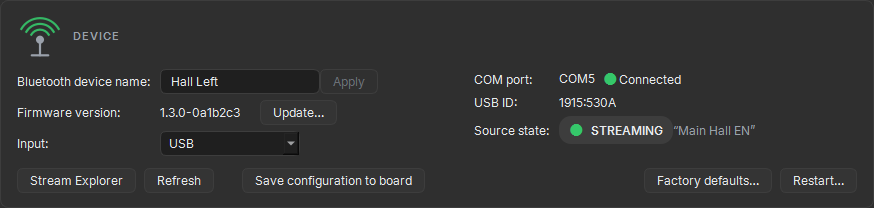
Figure: The device box with Update… beside the firmware version
- Press Update… beside the firmware version.
- Choose the application image, the file that ends in
-app-core.bin(1 of 2). Then choose the network image, the file that ends in-net-core.bin(2 of 2). - Read the confirmation. It names the AW100 and the image for each core. Check that the two images are not swapped. Then confirm.
- Wait. The AW100 stops its broadcast and restarts in DFU mode. The status bar shows the progress, and the board list shows Updating…. Do not touch the USB cable during the update.
- When the status bar reads now unplug the USB cable and plug it back in, unplug the cable and plug it in again. The AW100 starts the new firmware after this power cycle. There is no time limit for this step.
Several AW100s can be updated at the same time. Start the next update from the page of the next AW100.
Do not close the AW100 Config Tool while an update runs.
Checking the Result
The AW100 returns to the board list. The status bar shows the firmware version the AW100 now reports, next to the version it ran before. The update is complete when the new version is shown.
The version can also be read withAT+CGMR. Firmware v1.3.0 answers with the application version 1.3.0-63f2ff1. The images for the external antenna add (EXT-ANT).After the Update
- The device name, the USB vendor ID and product ID, and the Bluetooth address are kept.
- The saved source and sink configuration can return to the factory defaults. This is the case for an update to v1.3.0 from a prior version. Check the broadcast name, the Broadcast Code, the preset and the sink settings. Configure the AW100 again and save the configuration.
- The firmware release notes list what an update keeps for each version.
Updating from a Host
A product that contains the AW100 can update it from its own host, for example a Raspberry Pi or another Linux computer connected to the AW100 by USB. The host sends the AT command that starts the update, then writes the two images with the MCUmgr protocol over the USB serial port of the bootloader.
Requirements
- A USB connection from the host to the AW100.
- An MCUmgr client on the host that uses the serial transport. Examples are the
smpmgrcommand-line tool and thesmpclientPython library, which the AW100 Config Tool uses. - The two firmware images for the AW100 variant, as listed in Firmware Images.
- A way to remove the power of the AW100 and apply it again: a USB port whose power the host can switch, a switch on the 5 V supply of the AW100, or a person who unplugs the cable.
Host Procedure
- Send
AT+DFUon the AT command interface, USB or UART. The AW100 sends no reply. It restarts in DFU mode, and its LED is steady green. If the AW100 answersERROR, it cannot enter DFU mode by command. Hold the button while power is applied instead. - Wait for the AW100 to appear on USB as a serial port named
MCUBOOT. On Linux it is a/dev/ttyACMdevice. It is not the same serial port as the AT command port. - With the MCUmgr client, upload the application image (
-app-core.bin) to image 0 on that serial port. - Upload the network image (
-net-core.bin) to image 3. - Send no test, confirm or reset command after the upload. Wait at least 30 seconds after the network image is written. The bootloader copies the network image during this time.
- Remove the power of the AW100 and apply it again. The AW100 starts the new firmware.
- Wait for
+READYon the AT command interface. Read the version withAT+CGMRand check that it is the new version. - Configure the AW100 again if the update returned its configuration to the factory defaults, as described in After the Update. Save it with
AT+CONFSAVE.
The serial settings of the bootloader port do not matter on USB. A client that asks for them can use 115200 baud, 8 data bits, no parity, 1 stop bit and no flow control.
If an upload fails, upload the images again while the AW100 is in DFU mode. If the AW100 has left DFU mode, enter it with the button as described in Recovering an AW100 in DFU Mode.
Recovering an AW100 in DFU Mode
An AW100 whose update was interrupted stays in DFU mode, or does not start its firmware. Update it again in DFU mode:
- Unplug the USB cable. Hold the button of the AW100 and plug the cable in again while you hold the button. The AW100 is in DFU mode: its LED is steady green, and the board list of the AW100 Config Tool shows DFU mode.
- Press Update… on the page of the AW100 and choose the two images, as in Config Tool Procedure.
- If the AW100 does not appear in the board list, choose Options, then Update a board in DFU mode…, and select the serial port of the AW100.
If the AW100 leaves DFU mode while the file or confirmation dialogs are open, nothing is sent. Put the AW100 in DFU mode again and start again.
A host recovers the AW100 the same way. It writes the images from step 3 of the procedure in Updating from a Host once the AW100 is in DFU mode.
Additional Information - Cloud2GND
| Headquarters | Cloud2GND, LLC 4500 Bowling Blvd #100 Louisville, KY 40207 USA |
| Website | https://www.cloud2gnd.com/ |
| Technical Support | https://cloud2gnd.com/contact/ |
Note: Information contained in this document is subject to change.
Additional Information - Ezurio
Ezurio supplies the BL5340PA radio module of the AW100 and is the sales and distribution channel of the AW100. Please contact your local Ezurio sales representative for ordering and availability:
| Headquarters | Ezurio 50 S. Main St. Suite 1100 Akron, OH 44308 USA |
| Website | https://www.ezurio.com/ |
| Sales Contact | https://www.ezurio.com/contact |
Ezurio’s products are subject to standard Terms & Conditions.
Copyright © 2026 Cloud2GND, LLC. All rights reserved. Any information furnished by Cloud2GND and its agents is believed to be accurate but cannot be guaranteed. All specifications are subject to change without notice. Responsibility for the use and application of Cloud2GND materials or products rests with the end user since Cloud2GND and its agents cannot be aware of all potential uses. Cloud2GND makes no warranties as to non-infringement nor as to the fitness, merchantability, or sustainability of any Cloud2GND materials or products for any specific or general uses. Cloud2GND or any of its affiliates or agents shall not be liable for incidental or consequential damages of any kind. Nothing herein provides a license under any Cloud2GND or any third-party intellectual property right. Aurawave is a trademark of Cloud2GND, LLC. The Bluetooth® word mark and logos and Auracast™ are trademarks owned by Bluetooth SIG, Inc. Ezurio and its associated logos are trademarks owned by Ezurio and/or its affiliates. Other trademarks are the property of their respective owners.