/filters:background_color(white)/2024-10/BL654-Series.png)
Introduction
The goal of this document is to introduce the Ezurio Exit DTM utility for BL654 modules. This utility is used to switch modules from DTM mode back into interactive mode whereby the firmware can be upgraded or applications loaded to the module.
Requirements
The following are required to use the Exit DTM utility:
- A Ezurio BL654 module in DTM mode – part # 451-00001, 451-00002, 451-00003, 455-00001, or 455-00002
- UART access to module (with hardware flow control) to a host PC
- Host PC running Windows (7 or newer), Linux (Kernel 3.16 or newer), or Mac (El Capitan or newer) with UART to the module or USB to UART converter to the module
- ExitDTM software – Provided by Ezurio at https://github.com/LairdCP/BL654-ExitDTM
Overview
To exit from DTM mode, you must use Ezurio’s development board or your own equivalent implementation to provide a UART access to the module, including CTS and RTS lines for hardware flow control.
Application Options
To access the application options from the ExitDTM software, follow these steps:
- Download and run the ExitDTM software as described on the front Github page. This process varies depending on the host OS of your PC.
- Once complete, run the application.
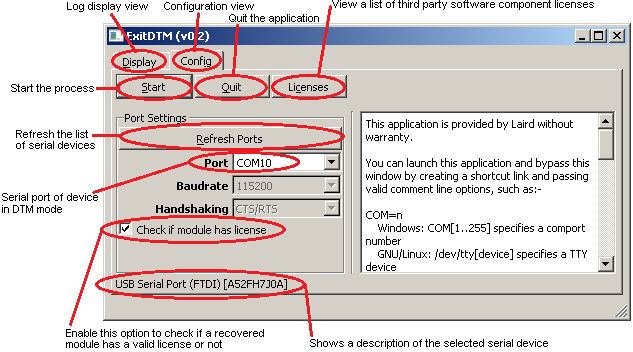
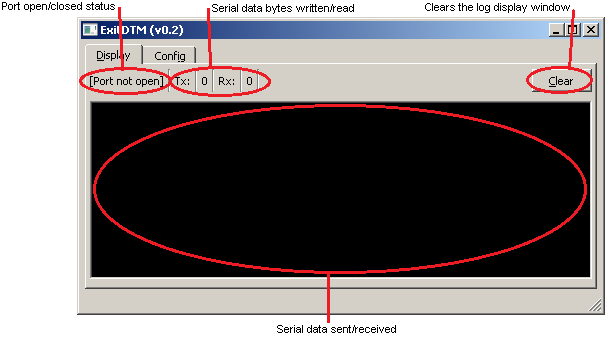
A window (Figure 1) appears with various options. Use the tab selection at the top of the window to switch the log display view (Display or Config) (Figure 2).
Exiting DTM Mode
To exit DTM mode, follow these steps:
Select the module’s serial port from the drop-down menu. Ensure that the description of the port matches your serial port or driver.
Note: The description of the serial port is shown near the bottom of the window. For Ezurio BL654 development kits and USB dongles, it displays FTDI.
Once this is configured, press Start to begin the process.
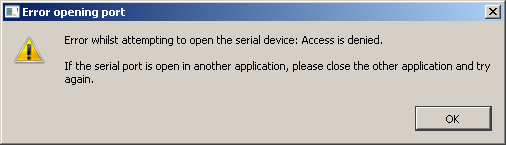
If an error displays regarding permission issues (Figure 3) then this is likely caused by one of the following:
- Another application has the serial port already open
- A permission issue (for non-Windows systems) where a user was not granted access rights to certain devices. If this is the case, please follow the instructions on the UwTerminalX Github Wiki: https://github.com/LairdCP/UwTerminalX/wiki/Granting-non-root-USB-device-access-(Linux).
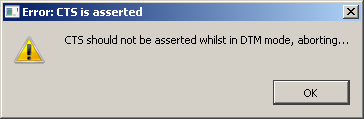
If an error message displays about the module not being in DTM mode (Figure 4) then this means that this utility does not need to be used on this module as it is already in interactive mode.
 |  |
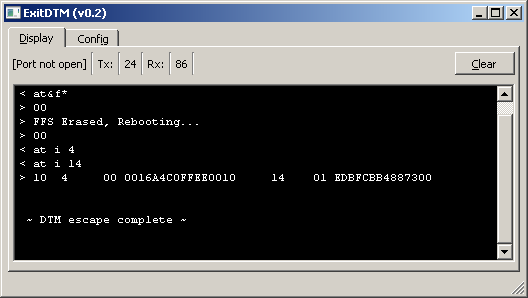
If no errors occur, then the application switches to the display tab and begins the process of exiting DTM mode on the module. This can take up to 15 seconds. Commands being sent to and received from the module are displayed in the main log window (Figure 5).
Note: This control does not accept input data to be written to the serial port. Please use a terminal application like UwTerminalX, available from https://github.com/LairdCP/UwTerminalX for this purpose.
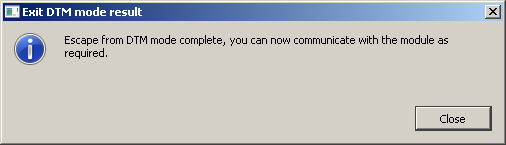
Once complete, a message displays the result of exiting DTM mode. If successful, you can close the utility and communicate with the module in interactive smartBASIC mode using a terminal emulator utility (Figure 6).
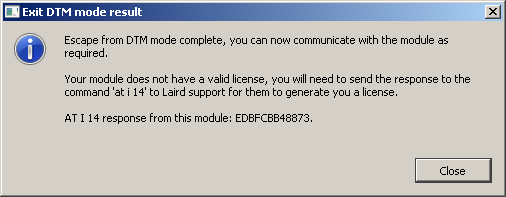
If you have the license check option enabled and the exit DTM process successfully completes but does not find a valid license on the module, the following message displays (Figure 7). This message contains information which should be sent via email to the Ezurio Wireless Support team at cs-support@ezurio.com
If there was a problem exiting from DTM mode, the following warning message displays which includes debugging information. This information can be used to narrow down where an issue is arising (Figure 8).
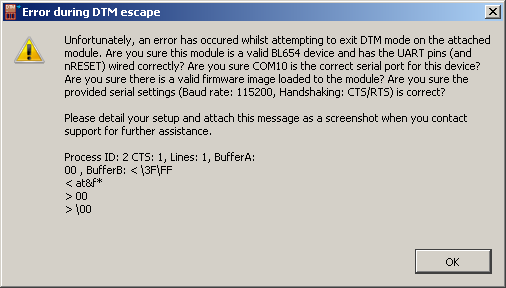
If you get this error, first ensure that the module is powered correctly (at the same voltage level as the USB to UART interface chip, if used – 1.8 to 3.6v). Also ensure that you’re using the correct UART pins (with CTS and RTS connected correctly for hardware handshaking support) (Table 1).
Note: This application only exits DTM mode on modules. You cannot use it to prevent an autorun application from running. To prevent an autorun application from running, consult the BL654 datasheet (available from the Documentation tab of the BL654 product page.
Table 1: UART interface
| Signal Name | Pin No | I/O | Comments |
|---|---|---|---|
| SIO_06 / UART_Tx | 35 | O | SIO_06 (alternative function UART_Tx) is an output, set high (in firmware). |
| SIO_08 / UART_Rx | 29 | I | SIO_08 (alternative function UART_Rx) is an input, set with internal pull-up (in firmware). |
| SIO_05 / UART_RTS | 39 | O | SIO_05 (alternative function UART_RTS) is an output, set low (in firmware). |
| SIO_07 / UART_CTS | 37 | I | SIO_07 (alternative function UART_CTS) is an input, set with internal pull-down (in firmware). |
If you are unable to exit DTM mode or get this application working successfully after following the guide, please contact the Ezurio Wireless Support team via email at support@ezurio.com for support.
Batch Mode
This application can be automated from the command line as part of a test or development system. There are various command line arguments which can be provided to control the functionality of the application. These are explained in Table 2.
Table 2: Command line arguments
| Argument | Comments |
|---|---|
| COM=<port> | Used to specify the serial port of the module.
|
| NOLICENSE | When supplied, skips checking if the module has a valid license. |
| NORECOVERY | When supplied, prevents starting the process when the application starts. |
| AUTOEXIT | When supplied, automatically closes the application without waiting for user input. |
| NOWINDOW | When supplied, the application does not create a GUI. |
Please ensure you check the latest files in the project on Github as the application may be updated with additional features/functionality which is not reflected in this document.
The exit code of the application determines if an error occurred or if exiting DTM was successful. These result codes can be found in the DtmMainWindow.h file. They are also displayed in Table 3. Note that fully automatic operation must be enabled to use the exit code status.
Table 3: Exit codes
| Return Code | Comments |
|---|---|
| 0 | Successfully exited DTM mode |
| -1 | Invalid serial port selected |
| -2 | CTS was asserted when it should not be |
| -3 | Successfully exited DTM mode but the module is lacking a license |
| -4 | The module did not respond within an allocated time limit to a request |
| -5 | An error with the serial port occurred |
Further Information
Further information relating to the BL654 module is available from the BL654 product page of the Ezurio website: https://www.ezurio.com/products/bl654-ble-thread-nfc-modules.
| Version | Date | Notes | Contributor(s) | Approver |
|---|---|---|---|---|
| 1.0 | 23 July 2018 | Initial Release | Jamie McCrae | Jonathan Kaye |
| 2.0 | 15 Apr 2025 | Ezurio rebranding | Sue White | Dave Drogowski |