/filters:background_color(white)/2026-01/OSM%20render-display%20rotated%20and%20moved%20-%20with%20camera.png)
/filters:background_color(white)/2024-10/C625_4_OSMM_SOM_REV00-front.377.png)
Getting Started
Welcome to the Quick Start Guide (QSG) for Ezurio's Carbon AM62 OSM-MF Evaluation Kit: ezurio.com/osm. This guide will walk you through the initial setup process and introduce you to the key hardware and software components of the kit. It's designed to help you quickly get up and running, understand what's included, and start exploring the platform. If you encounter any issues or have questions, please visit ezurio.com/support or contact us at support@ezurio.com. As always, let us know about your experience with the EVK — both the good and bad.
The Ezurio Carbon AM62 OSM-MF Evaluation Kit (EVK) is designed to prototype your integrated design using an Ezurio Carbon AM62 OSM-MF module. The OSM module is soldered onto an interposer board which connects to the Generic OSM Evaluation Kit Carrier Board by four 120 pin connectors. The Generic OSM Evaluation Kit Carrier Board provides multiple display interfaces, camera, audio, CAN bus, M.2, Gigabit Ethernet and other hardware options for optimal flexibility and user experience. OSM interposer boards can be purchased separately and can be switched out to prototype and validate your design against a wide range of Ezurio OSM modules and radios allowing you to find the optimal solution for your use case.
This document describes key hardware aspects of the Ezurio OSM evaluation kit and is applicable to the EVK PCB with revision R5.0.
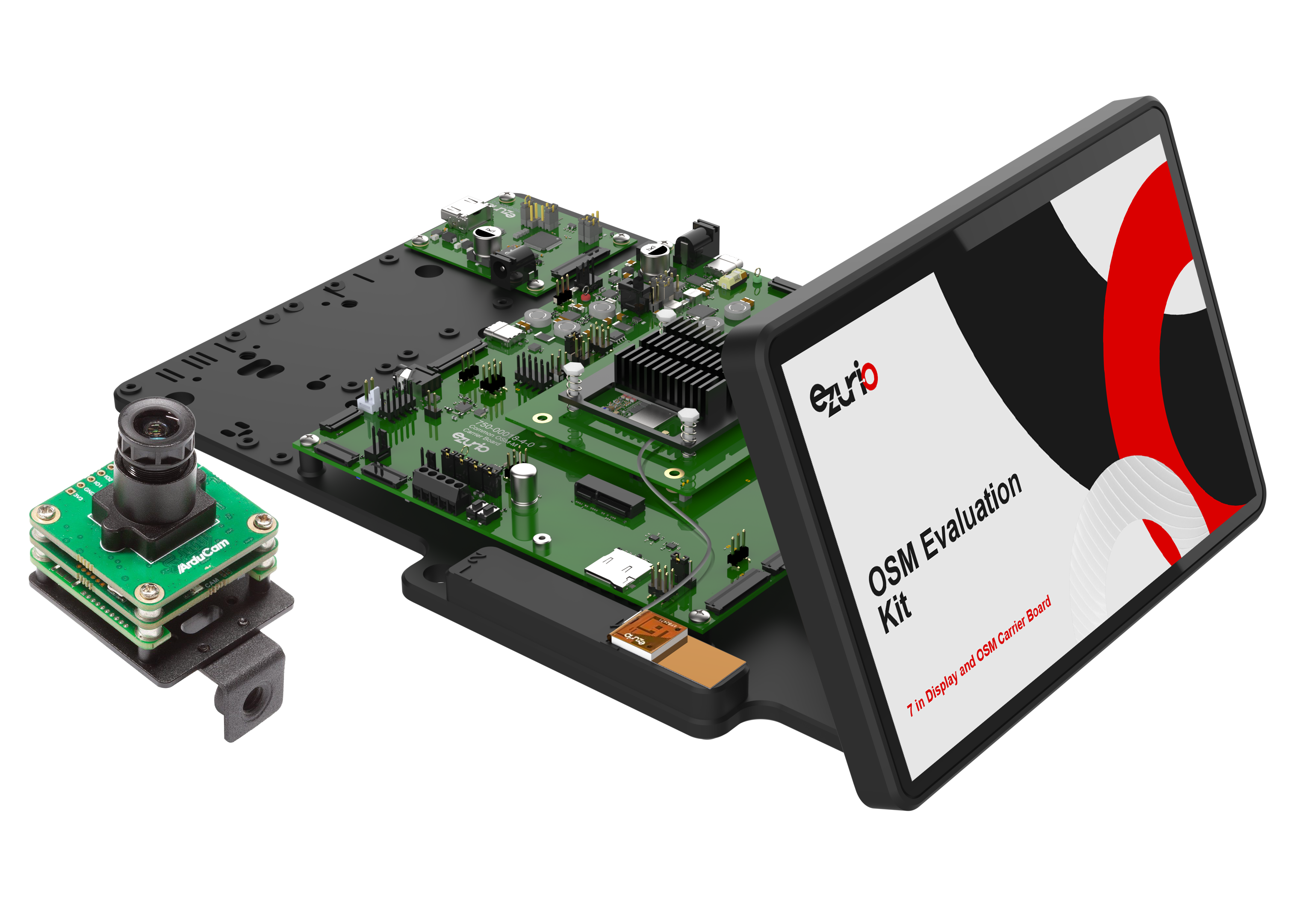
See the latest Carbon AM62 OSM-MF product brief here for a full list of available part numbers.
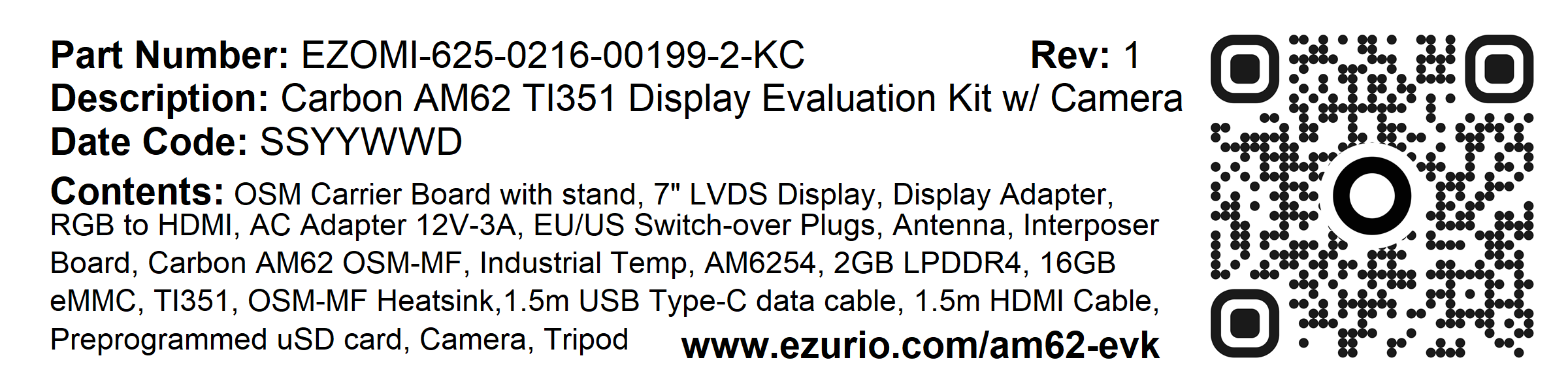
Example of the box label for the OSM Evaluation Kit.
Label will vary based on chosen kit part number.
Unboxing
The following table provides a breakdown of the hardware components included in the OSM Evaluation Kit:
| Item | Additional Description & Details | |
|---|---|---|
| 1 | 1x PCBA, Common OSM-M/OSM-S Carrier Board | #940-00384 |
| 2 | 1x PCBA, Interposer Board, Module, CarbonAM62, Quad Core CPU, 2GB LPDDR4, 16GB eMMC, Sona TI351 453-00199 | #940-00584 |
| 3 | 1x PCBA, Display Adapter Board, RGB to HDMI | #940-00065 |
| 4 | 1x PCBA, Interposer Board, OSM Carrier Board LVDS to BD Display LVDS | #940-00385 |
| 5 | 1× FLEXPIFA 6e, 2.4-2.5/4.9-7.125GHz, MH4L | #EFB2471A3S-10MH4L with 10 cm cable. |
| 6 | 1× 7" Tianma Display Assembly | #BD070LIC3_DSP (LVDS version) |
| 7 | 1x Daughter Board for Tianma Display | #DB_Tianma |
| 8 | 1x 12"(Cable Length) I2C Cable (30.5cm) | #BD_I2C_Cable |
| 9 | 1x 12"(Cable Length) Standard LVDS Cable | #BD_LVDS_Cable |
| 10 | 1x Cable, FFC / FPC, PREMO-FLEX 0.50 (AU) LGT 152 TYPEA 45CKT, 15020-1173 | #133-00033 |
| 11 | 1x Cable, Flat-Flex, 40 Circuits, 102mm Length, Same Side Contact | #133-00036 |
| 12 | 1x AC Adapter, 12V-3A, EU/US Switch-over Plugs, Barrel Connector, PHY=2.1mm | #223-00014 |
| 13 | 1x Cable, USB-C to USB-C, 1.5 Meter, Black, USB3.2 Gen 1 5Gbps, PD60W, E-Mark. | #133-00034 |
| 14 | 1x Cable, HDMI v2.0, Black, 1.5M, Shielded | #133-00035 |
| 15 | 1x Industrial microSD Card, 32GB, with SD Card Image, Yocto, Carbon AM62 | #450-00267 |
| 16 | 1x Heat Sink, Carbon | #110-00035 |
| 17 | 1x Thermal Interface Material, 35mm x 35mm x 1mm | #106-00014 |
| 18 | 1× Camera, B0582 from Arducam (Optional) | #522-00011, B0582, Arducam xISP – Darksee, Pre-tuned 8.3 MP Low-Light MIPI Camera Module. |
| 19 | 1× Tripod, Portable Camera Stand, Arducam (Optional) | #150-00006 |
Note: All accessories listed above are included unless otherwise stated.
Datasheets, Product Pages & DOCs
The following table provides an overview of available datasheets, product pages, and documentation (DOCs).
| Product | Datasheet | Product Page (+Buy) | Documentation | |
|---|---|---|---|---|
| 1 | Carbon AM62 OSM-MF, Interposer, Quad Core CPU, 2GB LPDDR4, 16GB eMMC, Sona TI351 453-00199 | https://www.ezurio.com/documentation/datasheet-carbon-am62-osm-mf | Carbon AM62 OSM-MF - Product Page | Carbon AM62 OSM-MF |
| 2 | Common OSM-M/OSM-S Carrier Board | See Documentation | Universal OSM Carrier – Product Page | Universal OSM Carrier |
| 3 | Display Adapter Board, RGB to HDMI | n/a | n/a | User Guide – OSM EVK |
| 4 | Display Adapter Board, LVDS to LVDS (for BD display) | n/a | n/a | User Guide – OSM EVK |
| 5 | FLEXPIFA 6e, 2.4-2.5/4.9-7.125GHz, MH4L | FlexPIFA 6E – Datasheet | FlexPIFA 6E – Product Page | FlexPIFA 6E – Documentation |
| 6 | BD070LIC3_DSP – 7″ Touchscreen Display | See Documentation | Link | Link |
| 7 | Industrial microSD Card, 32GB, 3D NAND, SDSDQAF4-032G-I | Industrial microSD Card | Industrial microSD Card | Industrial microSD Card |
| 8 | 1× Arducam xISP – B0582 Camera with Stand (Optional) | See Documentation | Link (Ezurio) Link (Arducam) | Link |
Board Assembly
Always make sure everything is completely powered off and disconnected from any power source before making changes to the board. Doing so while the board — or other parts of it — are still powered can cause irreversible damage to the hardware equipment!
To assemble, complete the following steps:
- Insert the Carbon AM62 OSM-MF SOM with adapter into the Generic OSM Evaluation Kit Carrier Board by aligning it with the four 120-pin connectors (
CON15,CON16,CON17,CON18), ensuring the location pin is oriented correctly for upright installation. - Use the mounting screws to secure the interposer board to the Generic OSM Evaluation Kit Carrier Board. You can adjust the screen tilt vertically, like a laptop, to match your setup and preferences. If wireless connectivity is required, make sure the antenna is securely connected to the MHF4L connector on the PCB of the radio module.
(Optional) Ezurio recommends the use of the heat sink for high processor utilization use cases and/or high temperature environments. If desired, apply the included thermal interface material to the heat sink, and next install the heat sink to the top of the Carbon AM62 OSM-MF module using the included mounting screws.
(Optional) If you purchased the camera version of the OSM EVK, connect the 15 cm 22-pin FPC cable to theCON9 (CSI_A) port on the Generic OSM Evaluation Kit Carrier Board, ensuring that the side labeled "To Board" is facing upward — just like the display. The connection on the camera side should already be pre-assembled. Next, attach the 2-pin jumper wire (GND/5V) between the OSM-M Carrier Board J46 pin header and the camera module. Be mindful of matching polarity. When finished, compare your setup with the following to make sure it matches: https://docs.arducam.com/Ezurio-Camera/MIPI-xISP-Camera-for-Ezurio/#hardware-connection.The 15 cm 22-pin FPC cable may appear copper-colored instead of black — depending on the production batch.
First Boot
The Carbon AM62 OSM-MF EVK ships with the most recent Yocto release pre-installed on the SD card.
Login Credentials:
Username: root
Password: summit
First Boot Hardware Configuration
See the EZ BSP User Guide.
“Hello World”
Once the Carbon AM62 OSM-MF EVK is powered throughCON1 using the DC barrel jack and the included power supply, and the power switch (V_SYS) is switched on, the touchscreen display will initialize automatically. A red power indicator LED (LED3) will illuminate; however, it may not be visible if the screen is folded down.Within a few seconds, the screen will display our Ezurio "IO" boot / loading animation. The system typically completes the boot process in under 20 seconds, after which the Weston desktop with an Ezurio logo as the background will appear.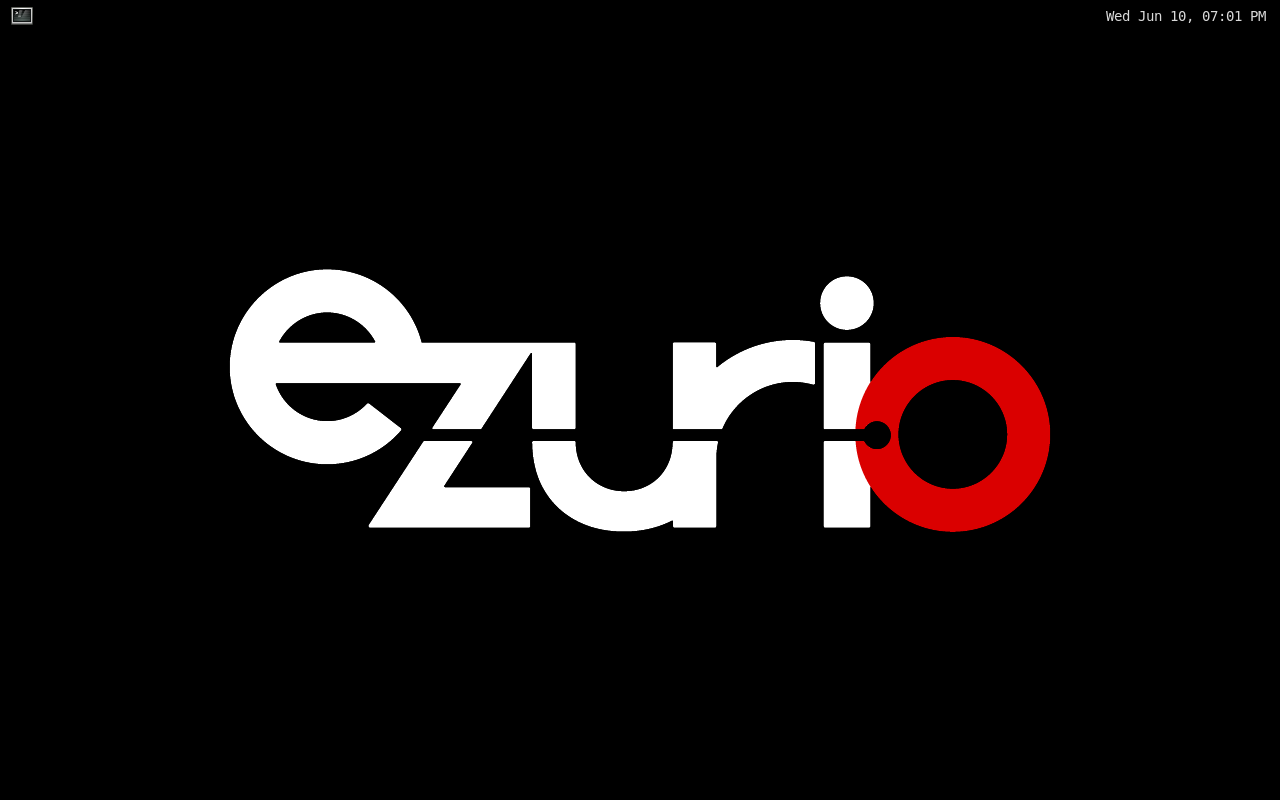
Terminal and Debug Access
Cortex-A (CPU)
To set up and establish a serial connection, use the USB-C to USB-C cable provided in the kit. Connect one end of the cable to theDebug UART USB-C connector on the Generic OSM Evaluation Kit Carrier Board and attach the other end to your host PC.Windows users can choose from terminal applications such as TeraTerm, RealTerm, or PuTTY, while Linux users should use tools like screen, minicom or picocom. The default serial settings are 115200 baud, 8 data bits, no parity, and 1 stop bit — commonly referred to as 8N1@115200. Once everything is in place, switch on the power switch (V_SYS), and you should see the system boot logs appear in your terminal window.Remote Network Login via SSH and Ethernet 1 /2
To connect the Carbon AM 62 OSM-MF EVK to your local or public network, plug an RJ45 Ethernet cable into eitherCON2 or CON3 on the Generic OSM Evaluation Kit Carrier Board. 100/1000 Mbps connections are supported on these two ports; 10 Gbps not. An SSH server (Dropbear) is enabled by default and listens on port 22 for incoming connections in the background. It becomes active once the system has fully booted.Ensure that a DHCP Server is running on your network. By default, the Carbon AM62 OSM-MF EVK firmware operates as a DHCP Client, automatically requesting and receiving IPv4 + IPv6 addresses through NetworkManager once available, as shown in the ip example below:# ip a
1: lo: <LOOPBACK,UP,LOWER_UP> mtu 65536 qdisc noqueue state UNKNOWN group default qlen 1000
link/loopback 00:00:00:00:00:00 brd 00:00:00:00:00:00
inet 127.0.0.1/8 scope host lo
valid_lft forever preferred_lft forever
inet6 ::1/128 scope host noprefixroute
valid_lft forever preferred_lft forever
2: can0: <NOARP,ECHO> mtu 16 qdisc noop state DOWN group default qlen 10
link/can
3: can1: <NOARP,ECHO> mtu 16 qdisc noop state DOWN group default qlen 10
link/can
4: eth0: <BROADCAST,MULTICAST,UP,LOWER_UP> mtu 1500 qdisc mq state UP group default qlen 1000
link/ether ec:40:00:0f:00:19 brd ff:ff:ff:ff:ff:ff
inet 192.168.29.195/24 brd 192.168.29.255 scope global dynamic noprefixroute eth0
valid_lft 82498sec preferred_lft 82498sec
inet6 fe80::8d98:7d80:fcb6:2265/64 scope link noprefixroute
valid_lft forever preferred_lft forever
5: eth1: <NO-CARRIER,BROADCAST,MULTICAST,UP> mtu 1500 qdisc mq state DOWN group default qlen 1000
link/ether ec:40:00:0f:00:1c brd ff:ff:ff:ff:ff:ff
6: wlan0: <NO-CARRIER,BROADCAST,MULTICAST,UP> mtu 1500 qdisc mq state DOWN group default qlen 1000
link/ether e8:cb:f5:20:8a:32 brd ff:ff:ff:ff:ff:ff
7: usb0: <NO-CARRIER,BROADCAST,MULTICAST,UP> mtu 1500 qdisc pfifo_fast state DOWN group default qlen 1000
link/ether de:ad:be:ef:00:00 brd ff:ff:ff:ff:ff:ffNext Steps
Performing a Software Update
See the EZ BSP User Guide.
Building a Custom, EZ BSP-based Image
See the EZ BSP User Guide.
Important Git Repository and Sources
Yocto
- Ezurio Yocto based SOM Release Packages and Manifests →
Summit-SOM-Yocto-Release-Packages: https://github.com/Ezurio/Summit-SOM-Yocto-Release-Packages - Ezurio Yocto meta layer for integrating Ezurio SOMs→
meta-summit-som: https://github.com/Ezurio/meta-summit-som - Ezurio Connectivity Stack Yocto meta layer for integrating Ezurio Wi-Fi radio modules →
meta-summit-radio: https://github.com/Ezurio/meta-summit-radio
Buildroot
- Ezurio Buildroot based SOM Release Packages and Manifests →
Summit-SOM-Buildroot-Release-Packages: https://github.com/Ezurio/Summit-SOM-Buildroot-Release-Packages - Ezurio Buildroot external for integrating Ezurio SOMs->
som-external: https://github.com/Ezurio/som-external - Ezurio Buildroot external for integrating Ezurio Wi-Fi radio modules->
summit-radio-external: https://github.com/Ezurio/summit-radio-external
Other OSes/Environments
Android
Android support is provided by our partners at Kynetics (www.kynetics.com). Learn more about “EvalOS” images (currently available for the Nitrogen 95 SMARC and Carbon AM67 OSM-MF) at https://www.ezurio.com/partners/technology/kynetics. If you would like access to the Android BSP source, you can contact us through support, and we will follow through to get them a license from Kynetics.
Boot to Qt
A Boot to Qt image can be created by including themeta-boot2qt meta layer on the appropriate branch (https://code.qt.io/cgit/yocto/meta-boot2qt.git/) in your Yocto build configuration and following the documentation provided by Qt at https://doc.qt.io/Boot2Qt/b2qt-how-to-create-b2qt-image.html.Debian
If Debian support is required, please contact your local sales representative or FAE.
QNX
If QNX support is required, please contact your local sales representative or FAE.
FreeRTOS
FreeRTOS is supported by the silicon vendors on the Ezurio OSM modules. On customer request, Ezurio can help provide support for these for a customer-specific release. If you have an urgent need for your current project and product, please get in touch with us — our team will be happy to discuss your specific case. Visit https://www.ezurio.com/contact.
Additional Features & Information
Wi-Fi and Bluetooth / BLE Usage
To explore additional features and learn how to configure the internal Wi-Fi and BLE radio, the Sona TI351 module, see https://www.ezurio.com/support/series/sona-ti351.
Camera Usage
- Using
set-mode, select connected camera overlay for your camera of your choice - To display image from the camera on the screen use
camera-display.shscript
References
- (Ezurio) SOM Documentation → https://www.ezurio.com/support#section-9
- (Ezurio) Software Releases → https://www.ezurio.com/resources/software-announcements
- (Arducam) Documentation → https://docs.arducam.com
- (TI) AM625 Processor → https://www.ti.com/product/AM625?utm_source=google&utm_medium=cpc&utm_campaign=epd-tech-inno-dynpf_mcuproc-cpc-pf-google-ww_en_int&utm_content=prodfolddynamic&ds_k=DYNAMIC+SEARCH+ADS&dcm=yes&gclsrc=aw.ds&gad_source=1&gad_campaignid=23829795494&gbraid=0AAAAAC068F2ycFBvaRcJXe6IAoiL-cqUF&gclid=Cj0KCQjwm8bTBhDWARIsAC9Hi8lZXjDfUwzMnOM5i8dYU1fd7s0egj0VxefgwkBk9aCOxKVfa2zfjksaAqvHEALw_wcB
- (TI) CC3351 Chipset → https://www.ti.com/product/CC3351
- (Buildroot Project) Documentation → https://buildroot.org/docs.html
- (Yocto Project) Documentation → https://docs.yoctoproject.org
- (SGeT Consortium) OSM Standard → https://sget.org/standards/osm